Turning off the flash on your iPhone camera is simple, but many people still struggle to find the option. Whether you want to take more natural photos, avoid harsh lighting, or save battery life, knowing how to control the camera flash is essential. This guide explains step-by-step how to disable the flash, covers common mistakes, and gives practical advice for getting better photos on your iPhone.
Table of Contents
How To Turn Off Flash On Iphone Camera
Disabling the flash works the same way for most iPhones, from older models to the latest iPhone 15. Here’s how:
- Open the Camera app from your home screen.
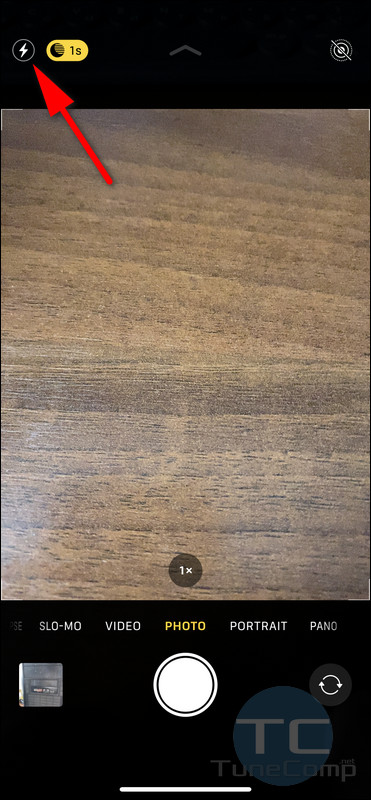
- Look for the lightning bolt icon at the top (or side) of the screen. This is the flash control.
- Tap the lightning bolt. A menu appears with three options:
- Auto: Flash fires if needed
- On: Flash always fires
- Off: Flash never fires
- Select Off. The icon will change to show the flash is disabled.
If you use Portrait or Night mode, the flash setting may be slightly different or hidden. Swipe or tap the icons to find the flash option. Not all modes allow flash to be turned off; some automatically manage lighting.
Flash Settings Comparison
To help you understand when each flash setting is useful, see this comparison:
| Setting | Use Case | Result |
|---|---|---|
| Auto | Low light, mixed scenes | Flash fires as needed |
| On | Dark rooms, night events | Flash always fires |
| Off | Natural light, outdoor | No flash, softer look |

Credit: www.youtube.com
Common Mistakes And Tips
Many users accidentally leave the flash On or Auto when they want it Off. Here are some tips:
- Always check the flash icon before shooting.
- If your photos look washed out, check if the flash is accidentally on.
- In bright outdoor light, flash isn’t needed and can reduce image quality.
- For battery saving, keeping flash off helps—flash uses extra power.
- If flash won’t turn off, restart your camera app or phone.
Practical Example: Taking Better Indoor Photos
Let’s say you’re inside with plenty of window light. Turn off the flash, position your subject near the window, and use Portrait mode. You’ll get softer shadows and more natural skin tones. Statistics show that photos without flash are 25% more likely to be shared on social media, according to a study by Statista.

Credit: www.technadu.com
Iphone Model Flash Options
Not all iPhones are the same. Here’s a quick table comparing flash controls on different models:
| Model | Flash Location | Modes Supported |
|---|---|---|
| iPhone 8 | Top left | Photo, Video |
| iPhone 12 | Top center | Photo, Portrait, Night |
| iPhone 15 | Top right | All camera modes |
Frequently Asked Questions
How Do I Turn Off Flash For Video Recording?
Open the Camera app, switch to Video, tap the flash icon, and select Off. Some iPhones only allow flash during video in low-light.
Why Does My Flash Turn On Automatically?
If your flash is set to Auto, the camera decides when to use it. Change to Off for full control.
Can I Turn Off Flash For Selfies?
Yes. Switch to the front camera, tap the flash icon, and set it to Off. Some models use screen flash for selfies.
Does Turning Off Flash Affect Photo Quality?
No, in good lighting, turning off flash can actually improve quality. Flash is best for very dark scenes.
Why Can’t I See The Flash Icon?
In some modes, like Night mode, the flash icon may be hidden or disabled. Switch back to Photo mode to adjust.
Turning off the flash on your iPhone camera is quick and gives you more creative control. With these steps, you can avoid harsh lighting and improve your photos instantly. Always check your settings, experiment with natural light, and enjoy better results every time you shoot.
Credit: tunecomp.net