Many Photoshop users love the Camera Raw Filter for its powerful editing tools. But sometimes, the filter just refuses to work. You click on the menu, and it’s grayed out—or you get an error message. This can be frustrating, especially when you need those precise edits right away. Let’s break down why the Camera Raw Filter might not work in Photoshop and how to fix these issues quickly.
Table of Contents
Common Reasons Camera Raw Filter Fails
The Camera Raw Filter in Photoshop can stop working for several reasons. Here are the most frequent causes:
- Unsupported Image Mode: Camera Raw Filter only works on certain image modes, like RGB. If your image is in CMYK, Indexed Color, or 16-bit Grayscale, the filter will be disabled.
- Incorrect Bit Depth: The filter supports 8-bit and 16-bit per channel images. If your image is 32-bit, you won’t be able to use the filter.
- Smart Object Issues: Sometimes, the filter doesn’t work on Smart Objects. You may need to rasterize the layer first.
- Outdated Photoshop or Camera Raw Plug-in: Running an old version of Photoshop or the Camera Raw plug-in can cause compatibility problems.
- Hardware Limitations: Older computers or missing graphics drivers may stop Camera Raw from working.
Here’s a quick comparison of supported and unsupported image types:
| Image Type | Camera Raw Support |
|---|---|
| RGB (8/16 bit) | Supported |
| CMYK | Not Supported |
| Indexed Color | Not Supported |
| 32-bit | Not Supported |
How To Fix Camera Raw Filter Problems
Most issues can be solved with a few simple steps:
- Change Image Mode: Go to Image > Mode and select RGB Color and either 8 Bits/Channel or 16 Bits/Channel.
- Rasterize Smart Objects: Right-click the layer and choose Rasterize Layer to make the filter available.
- Update Software: Keep both Photoshop and the Camera Raw plug-in up to date for maximum compatibility.
- Check Hardware: Update your graphics drivers and make sure your computer meets Adobe’s requirements.
- Restart Photoshop: Sometimes, a simple restart fixes temporary glitches.
Here’s a summary of troubleshooting actions:
| Problem | Solution |
|---|---|
| Camera Raw is grayed out | Switch to RGB, 8/16 bit |
| Error with Smart Object | Rasterize the layer |
| Filter not responding | Update Photoshop/plug-in |
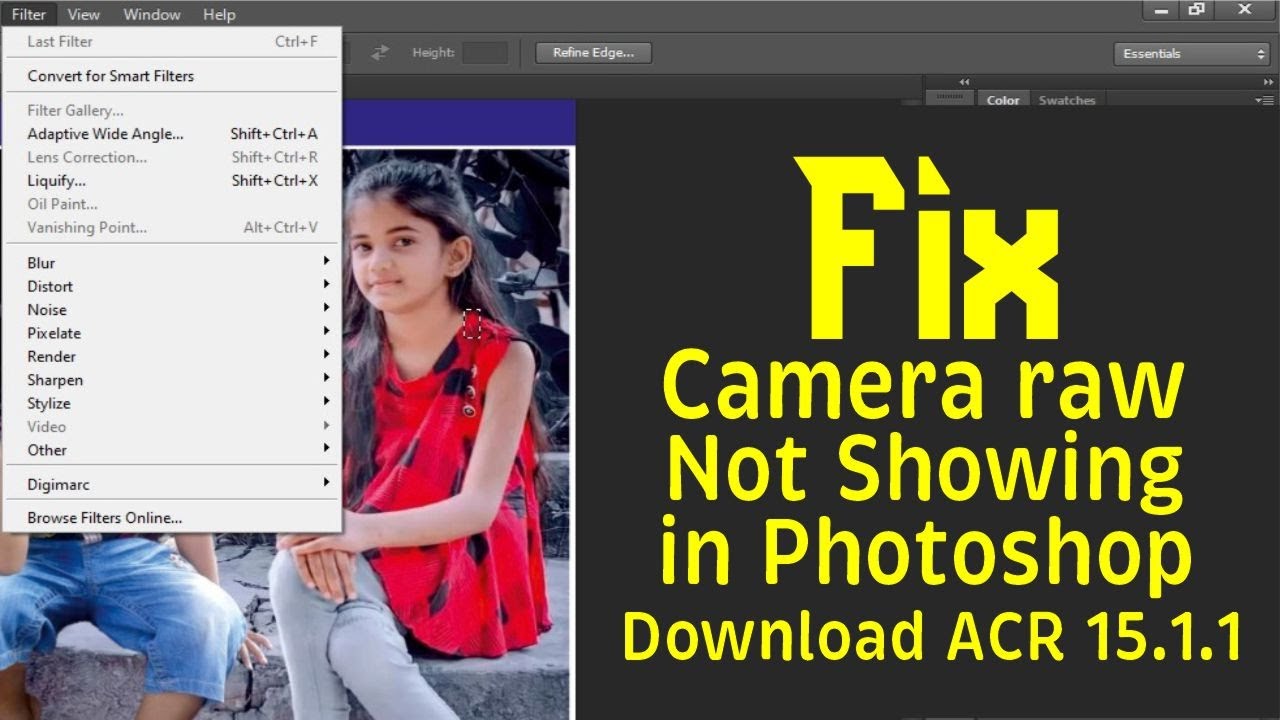
Credit: www.youtube.com
Non-obvious Insights Most Miss
Many beginners overlook these details:
- Adjustment Layers: Camera Raw Filter can’t be applied directly to adjustment layers. Always select a standard image layer.
- Multiple Layers: If you have more than one layer selected, the filter won’t work. Deselect extra layers first.
When To Seek More Help
If none of the fixes work, it may be a deeper issue—like corrupted preferences or system conflicts. In these cases, resetting Photoshop preferences or reinstalling may help. For official guidance, check the Adobe Help Center.
Photoshop’s Camera Raw Filter is a powerful tool, but it requires the right conditions to work. With the tips above, you can solve most issues in minutes and get back to editing.

Credit: digital-photography-school.com
Frequently Asked Questions
Why Is The Camera Raw Filter Grayed Out In Photoshop?
The filter is grayed out if your image is not in RGB mode or is 32-bit. Switch to 8 or 16-bit RGB.
Can I Use Camera Raw Filter On A Smart Object?
Yes, but sometimes you need to rasterize the layer first for full functionality.
Does Camera Raw Filter Work With All Photoshop Versions?
No, older versions may not support the latest Camera Raw features. Always update Photoshop.
Why Can’t I Apply Camera Raw To Adjustment Layers?
Camera Raw only works on pixel-based layers, not adjustment layers.
Is Camera Raw Filter Available In Photoshop Elements?
No, this feature is only in full versions of Adobe Photoshop.