Taking photos with your iPhone is easy, but making them look amazing often requires a little extra touch. Apple’s Camera app includes built-in filters that can instantly change the style of your photos. Whether you want bold colors, dramatic black and white, or a vintage look, learning how to filter camera photos in iPhone helps your images stand out without using extra apps.
Table of Contents
Applying Filters While Taking Photos
You don’t need to wait until after you’ve shot a photo to add a filter. The iPhone Camera app lets you apply live filters before you capture the moment.
- Open the Camera app.
- Tap the three circles icon in the top right (on newer iPhones) or bottom right (on older models).
- Swipe to browse through different filter options like Vivid, Mono, or Dramatic.
- Select a filter, then take your photo.
Live filters let you see the effect before you press the shutter. This saves editing time later and helps you decide which style fits your subject.
Filtering Existing Photos
If you want to change the look of a photo you’ve already taken, use the built-in editing tools in the Photos app.
- Open the Photos app and select the photo.
- Tap Edit in the top right corner.
- Tap the three circles filter icon at the bottom.
- Scroll and tap to preview different filters.
- Adjust the filter’s strength by using the slider.
- Tap Done to save changes.
This method is non-destructive, meaning you can remove or change the filter anytime without losing the original image.

Credit: shotkit.com
Comparing Popular Filters
Different filters suit different moods and subjects. Here’s a quick comparison of three popular iPhone camera filters:
| Filter Name | Style | Best For |
|---|---|---|
| Vivid | High color & contrast | Landscapes, city scenes |
| Mono | Black & white | Portraits, street photography |
| Noir | High-contrast B&W | Dramatic scenes, architecture |
Editing Tips For Better Results
- Don’t overdo it – Strong filters can make photos look unnatural.
- Combine filters with other edits – Adjust brightness, contrast, or crop for the best effect.
- Try different filters – Sometimes a subtle filter works better than a bold one.
Here’s how filter strength can change a photo’s mood:
| Strength | Look | Common Use |
|---|---|---|
| Low | Natural, soft change | Portraits |
| Medium | Noticeable style | Travel, food |
| High | Bold, artistic | Creative projects |
A common mistake is to use the same filter for every photo. Always match the filter style to your subject and message.
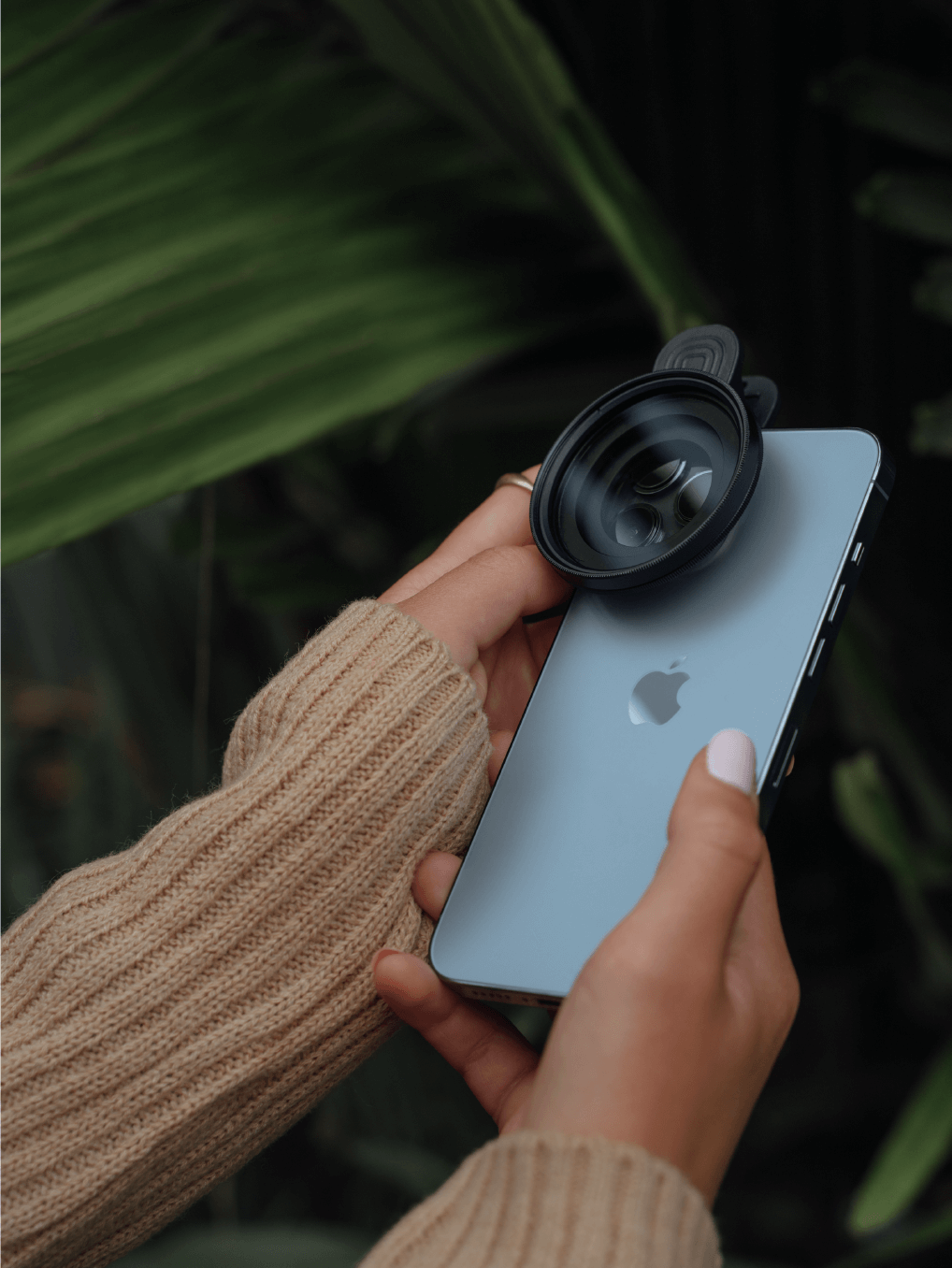
Credit: www.sandmarc.com
Frequently Asked Questions
How Many Filters Are Available In The Iphone Camera App?
There are currently nine built-in filters on most iPhones, including color and black & white options.
Can I Remove A Filter After Saving The Photo?
Yes, just reopen the photo in the Photos app, tap Edit, and either change the filter or set it back to Original.
Do Filters Reduce Photo Quality?
No, iPhone filters change only the appearance, not the resolution or sharpness.
Are Third-party Filter Apps Better?
Some offer more filters and advanced controls, but Apple’s filters are easy, fast, and high quality. Explore options like VSCO or Snapseed for more features.
Where Can I Learn More About Iphone Camera Features?
You can visit the official Apple Support page for detailed guides.
Filtering camera photos in iPhone is simple but powerful. With these tips, you can give your photos a unique style without extra apps or effort. Try different filters and editing techniques to find your personal look.