Connecting a gimbal to your camera can transform your videos. With smooth movements and stable shots, your footage looks professional, even if you’re walking or moving. Many people struggle with this process, but it’s simple when you know what to do. Here’s a straightforward guide to help you connect your gimbal to your camera the right way.
Table of Contents
Understanding Gimbals And Compatibility
A gimbal is a device that keeps your camera steady. There are different types: handheld, wearable, and mounted. Not every gimbal fits every camera. Before you start, check:
- Camera weight: Most gimbals have weight limits. For example, the DJI Ronin-S supports up to 3.6 kg (7.9 lbs).
- Mounting type: Match the gimbal’s mounting plate to your camera’s tripod socket.
- Cable connections: Some gimbals offer camera control through USB or HDMI cables.
Here’s how some popular gimbals compare:
| Gimbal Model | Max Payload | Supported Cameras |
|---|---|---|
| DJI Ronin-S | 3.6 kg | DSLR/Mirrorless |
| Zhiyun Crane 2S | 3.2 kg | DSLR/Mirrorless |
| FeiyuTech AK2000C | 2.2 kg | Mirrorless/DSLR |
Step-by-step: Connecting Gimbal To Camera
- Charge the gimbal: Fully charge before use to avoid power loss during setup.
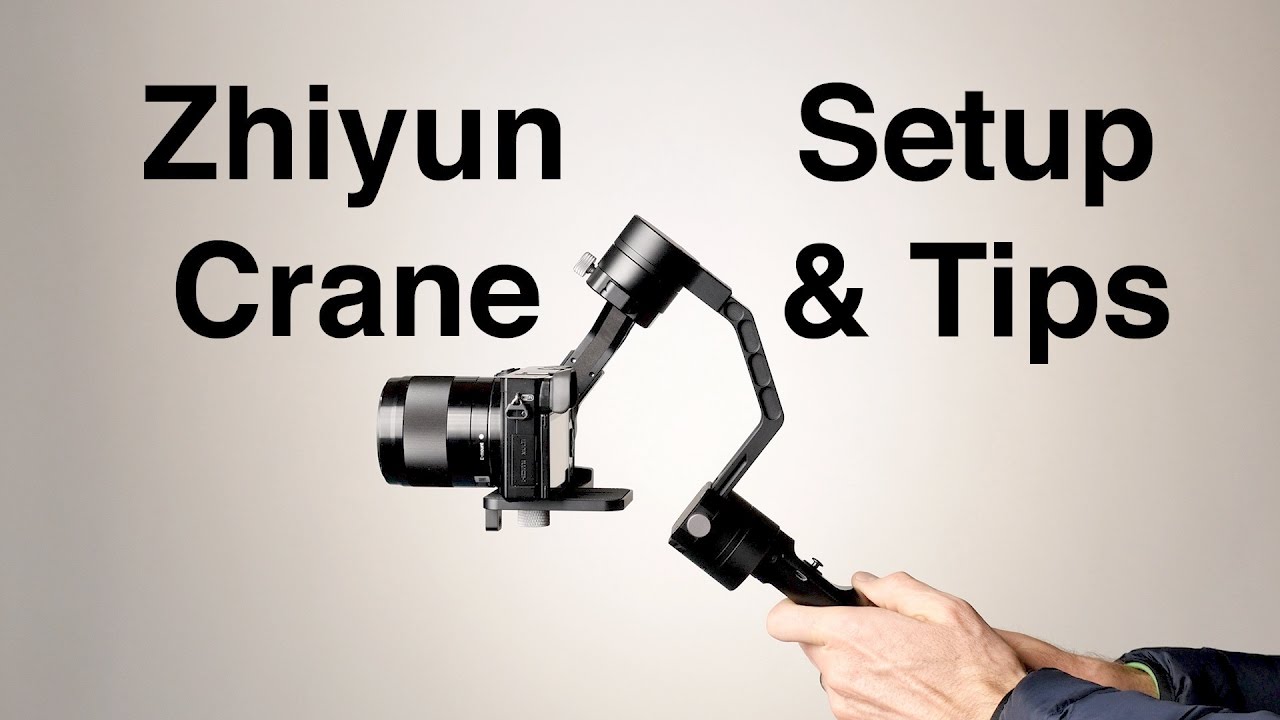
- Attach the mounting plate: Remove the gimbal’s quick-release plate and screw it into your camera’s tripod socket.
- Mount the camera: Slide the camera with the plate onto the gimbal, locking it in place.
- Balance the camera: Adjust the arms so the camera stays level when you let go. This is critical for smooth movement and battery life.
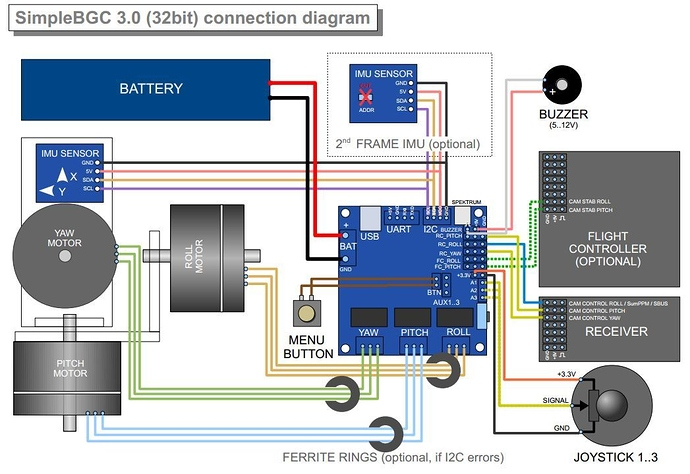
- Connect control cables (if supported): Some gimbals let you control the camera’s shutter, record, or focus. Connect the supplied cable between the gimbal and your camera’s port.
- Power on and calibrate: Turn on the gimbal and use the auto-calibration function if available.
Some cameras require you to enable “External Control” or similar settings in their menu. Always read both your camera and gimbal manuals.
Credit: www.dronetrest.com
Common Mistakes To Avoid
Many beginners make these errors:
- Skipping balance: An unbalanced camera will strain the gimbal’s motors and drain the battery fast.
- Overloading: Using a camera or lens that’s too heavy can damage your gimbal.
- Wrong cables: Not all gimbals use the same cable types. Using the wrong one may cause malfunctions.
Here’s a quick look at cable compatibility:
| Gimbal Brand | Camera Control Cable | Common Compatible Brands |
|---|---|---|
| DJI | USB-C, Micro USB | Sony, Canon, Nikon |
| Zhiyun | Micro USB, Mini USB | Sony, Panasonic |
| FeiyuTech | USB-C | Canon, Sony |
Tips For Best Results
- Double-check balance after changing lenses
- Update firmware for both gimbal and camera regularly
- Practice slow, controlled movements for the smoothest footage
For more detailed technical information, visit the Wikipedia page on gimbals.
Credit: maryheylema.nl
Frequently Asked Questions
How Do I Know If My Camera Is Compatible With My Gimbal?
Check the gimbal’s official supported camera list and weight limit.
Can I Use A Smartphone On A Camera Gimbal?
Some gimbals have adapters, but not all. Always check the manufacturer’s website.
What Should I Do If My Gimbal Shakes?
Rebalance your camera and ensure you’re not over the weight limit.
Do I Need Special Software To Control My Camera From The Gimbal?
Some models offer apps for extra features, but most basic controls work with just a cable.
How Often Should I Calibrate My Gimbal?
Calibrate every time you change your camera or lens for best performance.
Connecting your gimbal to your camera is easy with these steps. Take time to balance and set up, and your videos will look much smoother.