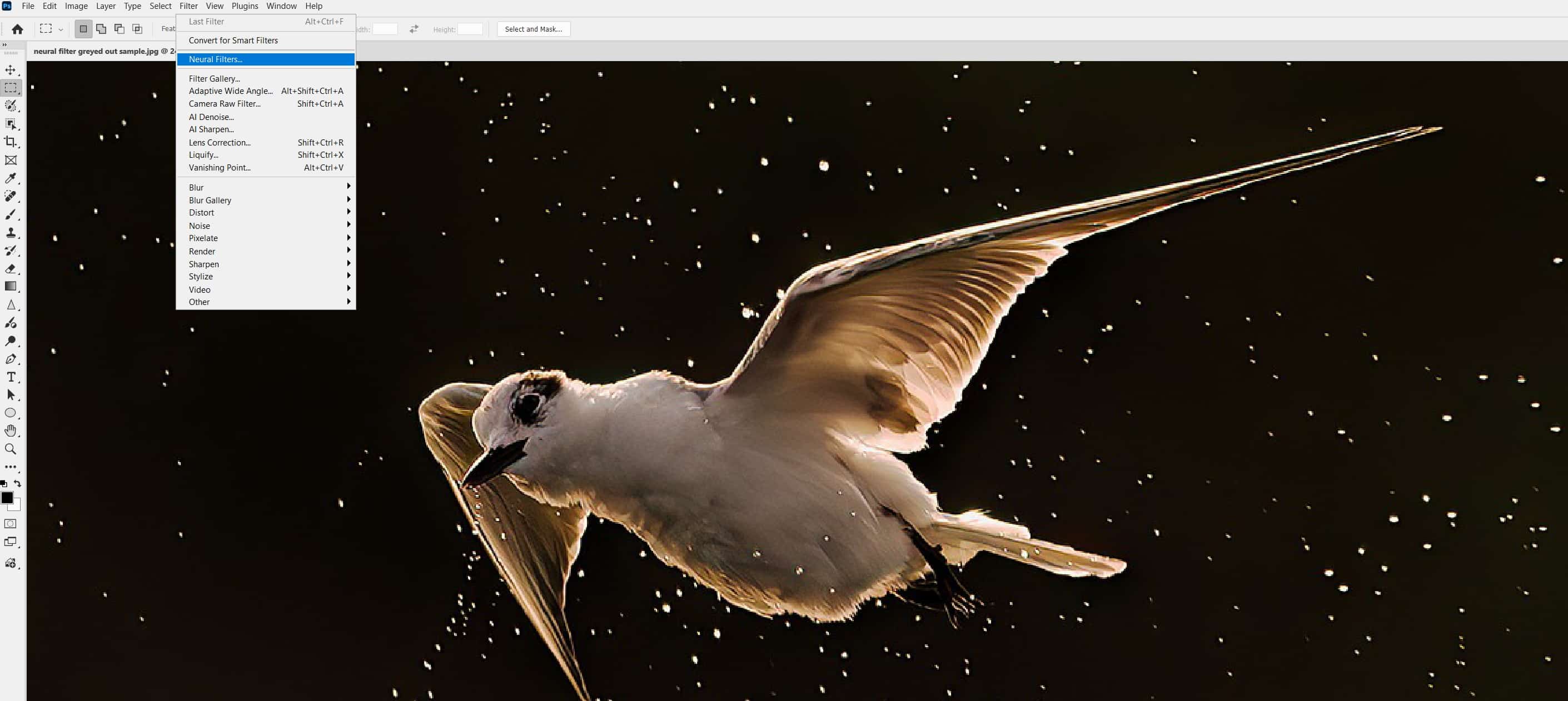
When working in Photoshop, you may sometimes find the Camera Raw Filter grayed out or completely disabled. This can be confusing, especially if you rely on Camera Raw’s powerful adjustments for your workflow. Understanding why this happens will save you time and help you avoid common mistakes.
Table of Contents
Main Reasons Camera Raw Filter Is Disabled
The most common reasons for the Camera Raw Filter being unavailable are related to your image’s properties or your software setup. Let’s break them down:
1. Unsupported Image Mode
Camera Raw Filter works only with images in RGB 8-bit or 16-bit modes. If your image is in CMYK, Lab, Indexed Color, or Bitmap mode, the filter will be disabled.
2. Smart Object Limitations
If you try to apply the Camera Raw Filter to a vector Smart Object or a Smart Object linked to an external file, Photoshop may not allow it. Only rasterized Smart Objects in compatible modes can use the filter.
3. No Active Pixel Layer
The filter won’t work if you have a text, shape, or adjustment layer selected. You must select a pixel-based layer.
4. Image Bit Depth
If your image is set to 32 bits/channel, the filter is unavailable. Camera Raw works only with 8 or 16 bits/channel.
5. Software Version Or Gpu Issues
Older versions of Photoshop or lack of proper GPU support can sometimes disable the filter.
Here’s a quick comparison:
| Image Mode | Camera Raw Filter |
|---|---|
| RGB (8/16 bit) | Enabled |
| CMYK / Lab | Disabled |
| Indexed Color / Bitmap | Disabled |
How To Enable Camera Raw Filter
If the Camera Raw Filter is grayed out, here’s what you can do:
- Convert your image to RGB mode: Go to Image > Mode > RGB Color.
- Change bit depth if needed: Image > Mode > 8 Bits/Channel or 16 Bits/Channel.
- Select a pixel layer in the Layers panel.
- Rasterize Smart Objects if needed (right-click > Rasterize Layer).
- Update your Photoshop version and GPU drivers.
Typical workflow comparison:
| Layer Type | Can Use Camera Raw Filter? |
|---|---|
| Pixel Layer | Yes |
| Text/Shape Layer | No |
| Adjustment Layer | No |
| Vector Smart Object | No |

Credit: www.youtube.com
Extra Insights Most Beginners Miss
Many users forget to check the bit depth of their image, especially after merging different sources. Also, sometimes, even after converting to RGB, you must flatten the image if you have complex layer structures. Another less-known issue is with GPU acceleration—if it’s disabled in Preferences, Camera Raw Filter may not work smoothly or can be disabled.
Frequently Asked Questions
Why Is The Camera Raw Filter Not Showing Up In Photoshop?
Usually, your image is in an unsupported mode or bit depth. Make sure your image is in 8-bit or 16-bit RGB mode.
Can I Use Camera Raw Filter On Smart Objects?
Yes, but only if the Smart Object is rasterized and in the correct color mode. Vector Smart Objects or linked files may not work.
Does Camera Raw Filter Work With All Layers?
No, it only works with pixel-based layers. Text, shape, or adjustment layers won’t allow you to use the filter directly.
How Do I Change My Image To The Right Mode?
Go to Image > Mode, then select RGB Color and 8 Bits/Channel or 16 Bits/Channel.
Where Can I Learn More About Camera Raw?
You can read more at the Adobe Help Center.
Knowing these details helps you work faster and avoid getting stuck when editing. Always check image mode and layer type first—they are the most common reasons for a disabled Camera Raw Filter.
Credit: www.psdvault.com