Using camera filters on your PC can transform dull webcam feeds into engaging visuals. Whether you’re streaming, joining video calls, or recording, camera filters add fun effects, improve lighting, and even hide backgrounds. Setting up camera filters on your computer is easier than most people think. Let’s explore how to get started, the best tools, and some insider tips.
Table of Contents
How Camera Filters Work On Pc
Most camera filters use software that sits between your webcam and the apps you use, like Zoom or Skype. These tools add effects, backgrounds, or enhancements before your video reaches others. Popular filter apps include Snap Camera, ManyCam, and OBS Studio.
Key Features Comparison
Here’s a quick look at what some leading filter apps offer:
| App | Main Features | Free Version? |
|---|---|---|
| Snap Camera | Fun lenses, AR effects | Yes |
| ManyCam | Backgrounds, text, overlays | Limited |
| OBS Studio | Custom filters, pro-level controls | Yes |
Setting Up Camera Filters
- Download a filter app like Snap Camera or ManyCam from their official sites.
- Install the software and follow the prompts.
- Select your webcam in the filter app. Most tools auto-detect your camera.
- Choose your filter—from fun masks to virtual backgrounds.
- Open your video app (Zoom, Teams, etc.) And select the filter’s “virtual camera” as your webcam.
Example Use: Snap Camera
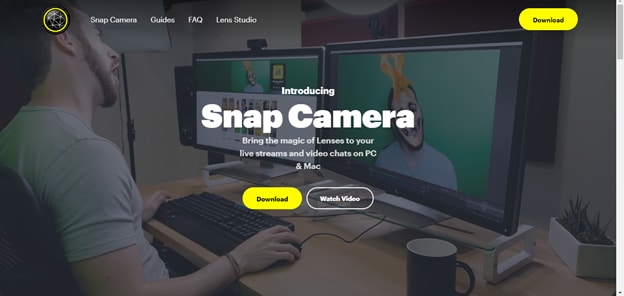
Let’s say you install Snap Camera. After setup, you’ll see dozens of lenses to pick from. When you choose one, your webcam feed changes instantly. In Zoom, simply select “Snap Camera” as your camera source.

Credit: www.lightboarddepot.com
When To Use Filters
Camera filters are great for:
- Making meetings fun: Add sunglasses, hats, or animal faces.
- Hiding messy rooms: Blur or change your background.
- Professional lighting: Use filters to brighten or soften your appearance.
- Streaming: Add logos or text for your audience.
But remember, filters can slow down older computers. If you notice lag, try reducing filter quality or closing other apps.
System Requirements Table
Check that your PC meets these minimum requirements:
| Filter App | RAM Needed | CPU Type |
|---|---|---|
| Snap Camera | 4 GB | Intel i3+ |
| ManyCam | 2 GB | Intel i5+ |
| OBS Studio | 4 GB | Intel i5+ |
Insider Tips Most Beginners Miss
- Lighting matters: Filters look best with good lighting. A cheap ring light can make a big difference.
- Keep software updated: Bugs and compatibility issues are common with filter apps. Check for updates before important calls.
- Test before meetings: Some filters don’t work with every video app. Open your meeting software early to avoid surprises.
Camera filters are more than just fun—they help you look your best, protect privacy, and create a unique online presence. If you want to dive deeper, the Webcam Wikipedia page has more technical details.
Credit: www.voteaimee.com
Frequently Asked Questions
What Are Camera Filters On Pc?
Camera filters are software effects added to your webcam feed. They can change backgrounds, improve lighting, or add fun elements.
Can I Use Camera Filters On All Video Apps?
Most filters work with major apps like Zoom, Skype, and Teams. Always check compatibility with your preferred software.
Are Camera Filter Apps Free?
Many popular options offer free versions. Some advanced features may require payment.
Will Camera Filters Slow Down My Computer?
Older PCs may experience lag. Closing unused apps and using simple filters can help.
Do I Need A Special Webcam To Use Filters?
No, most USB webcams work. Just make sure your camera is detected by the filter app.