Filtering your camera on Microsoft Teams can make your video calls more enjoyable and professional. Whether you want to blur your background, add a fun effect, or use a third-party filter app, Teams offers flexible options. Many users are surprised by how simple but powerful these features can be.
This guide will show you how to filter your camera on Teams, compare built-in and third-party tools, and share tips for a smooth experience.
Table of Contents
Built-in Camera Filters In Teams
Microsoft Teams includes basic background effects that work as camera filters. These are easy to apply during or before a meeting.
- Join or start a meeting in Teams.
- Click the More icon (three dots) on the meeting toolbar.
- Select Apply background effects.
- Choose from options like Blur, pre-set images, or upload your own.
- Click Preview to see the effect, then hit Apply.
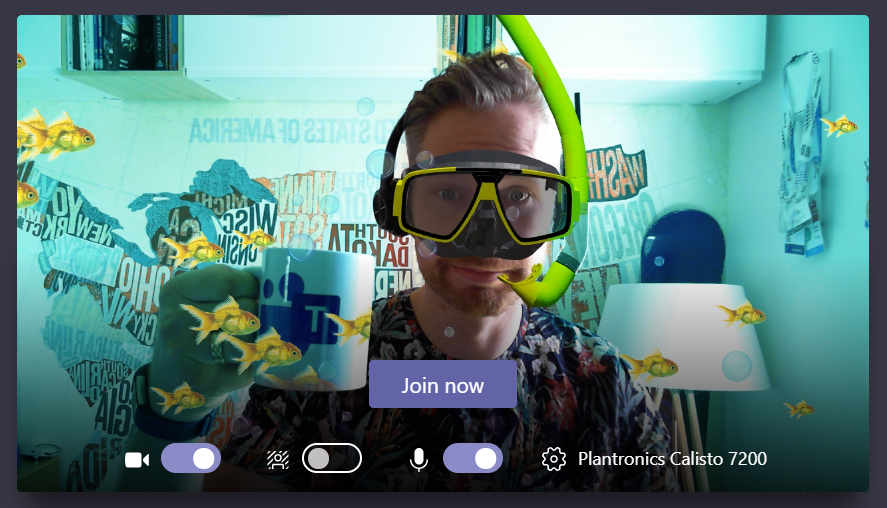
If you want a simple filter, the Blur effect hides your messy room and helps you look focused. Uploading a custom background adds personality or privacy.
Comparison: Blur Vs. Custom Background
| Effect | Best For | Setup Time |
|---|---|---|
| Blur | Quick privacy | Instant |
| Custom Image | Branding, fun | 1-2 minutes |
Many users miss the option to upload their own backgrounds. This small feature can make your calls stand out, especially for team branding.
Using Third-party Camera Filters
If you want more creative filters, use third-party apps like Snap Camera or ManyCam. These apps act as a virtual webcam, allowing you to add effects before your image reaches Teams.
Steps to set up:
- Download and install a camera filter app.
- Open the app and choose your filter.
- In Teams, click your profile picture > Settings > Devices.
- Under Camera, select the third-party app (e.g., Snap Camera).
Now, your camera in Teams will show the filter you set in the app.
Popular Camera Filter Apps
| App Name | Key Feature | Free Version |
|---|---|---|
| Snap Camera | Fun face filters | Yes |
| ManyCam | Pro-level effects | Limited |
| OBS Studio | Custom overlays | Yes |
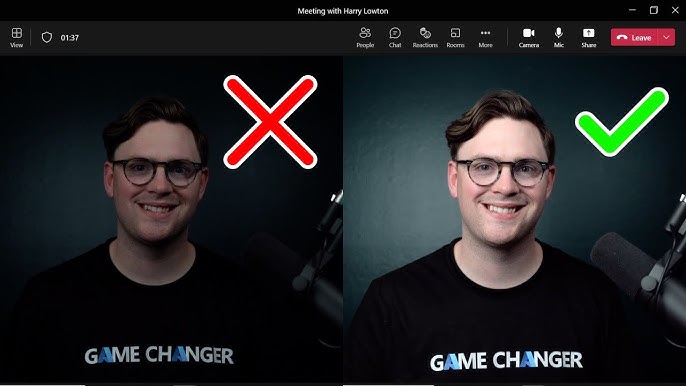
A common mistake is forgetting to switch back to your regular camera after the meeting. Always check your camera source before important calls.
Credit: www.youtube.com
Tips For Smooth Camera Filtering
- Test filters before joining important meetings.
- Make sure your PC has enough resources; filters can slow older computers.
- Remember, not all filters are professional—pick styles that fit your audience.
For more details on virtual cameras, see Wikipedia.
Frequently Asked Questions
Can I Use Camera Filters On Teams Mobile App?
No, Teams mobile app does not support camera filters or virtual backgrounds. You can only use these features on the desktop app.
Do Camera Filters Slow Down My Computer?
Yes, advanced filters can use more CPU and memory. Close other apps if your video lags.
Are Third-party Filter Apps Safe?
Most popular apps are safe if downloaded from the official site. Always check reviews and permissions.
How Do I Remove A Filter In Teams?
Click More > Apply background effects > choose None to disable filters or backgrounds.
Can I Use Animated Backgrounds On Teams?
Teams does not support animated backgrounds yet. Only still images or blur effects are available.
Credit: www.lync.se