Getting creative with your webcam or photos on a PC is easier than you think. Many people want to use camera filters for video calls, livestreams, or editing photos. These filters can add fun effects, improve your appearance, or even create a professional look. But how do you get camera filters on your PC? Let’s explore the steps, software options, and tips to help you start quickly.
Table of Contents
Popular Software For Camera Filters
You need the right software to add filters to your camera on a PC. Here are some top choices:
- Snap Camera: Created by Snap Inc., Snap Camera brings Snapchat’s popular filters to your computer. It’s free and easy to use.
- OBS Studio: This free tool is popular with streamers. It lets you add filters and effects while you record or broadcast.
- ManyCam: ManyCam offers a wide range of filters, backgrounds, and overlays. It’s great for teachers and professionals.
- YouCam: CyberLink’s YouCam adds beauty filters, AR effects, and more. It’s user-friendly, but some features are paid.
Here’s a quick comparison of these tools:
| Software | Free Version | Live Filters | Best For |
|---|---|---|---|
| Snap Camera | Yes | Yes | Fun filters |
| OBS Studio | Yes | Yes | Streaming |
| ManyCam | Limited | Yes | Virtual backgrounds |
| YouCam | Limited | Yes | Beauty effects |
How To Install And Use Camera Filters
Most camera filter apps are simple to set up. Here’s a general guide:
- Download and install your chosen app from its official website.
- Open the app and grant camera permissions.
- Select a filter or effect from the app’s library.
- Set the app as your camera in Zoom, Skype, or other video software. Usually, you can do this by changing the camera source in your video call settings.
Not all filters work with every webcam or video app, so always check compatibility.
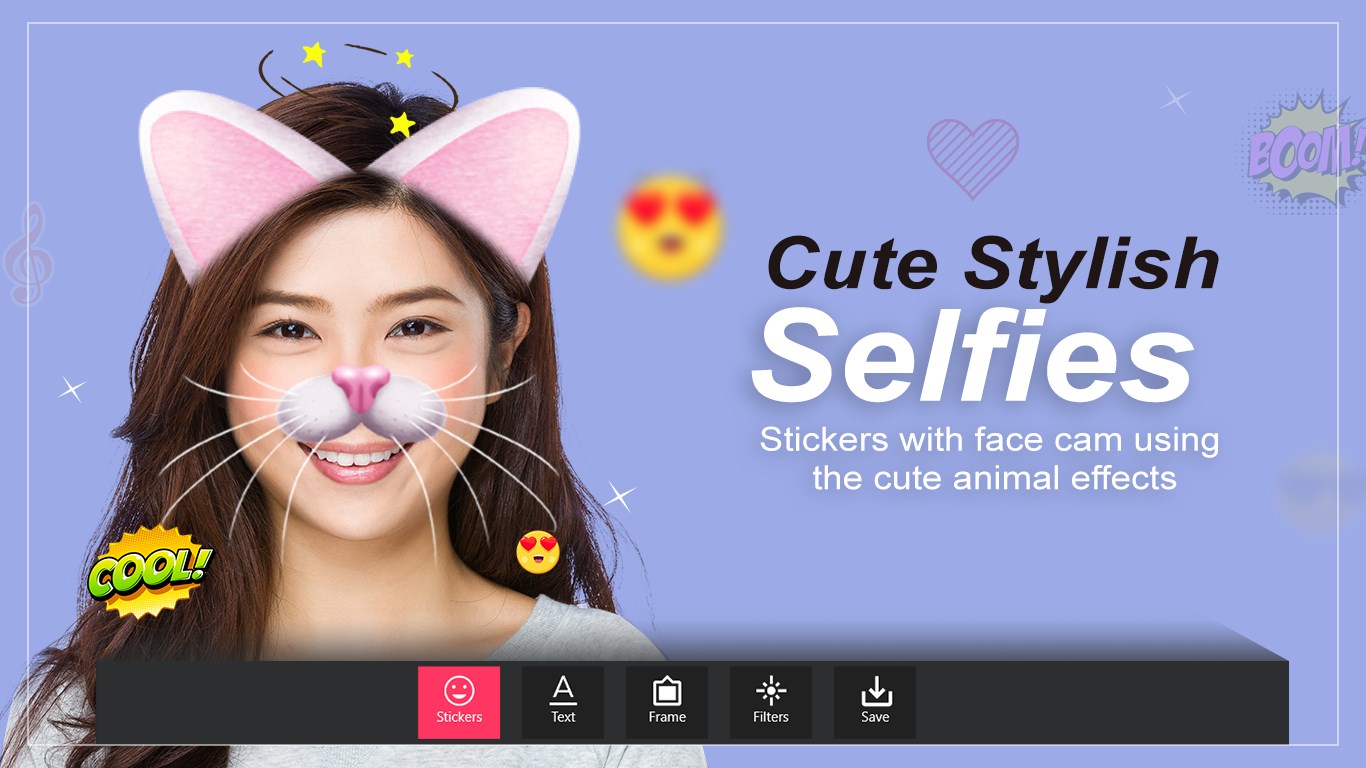
Credit: apps.microsoft.com
Useful Tips For Better Results
- Use good lighting: Filters look better when your room is well-lit.
- Adjust settings: Many apps let you change filter strength or background blur.
- Check computer specs: Some filter apps require a modern graphics card.
- Stay updated: New filters are released often, so keep your app up to date.
One thing beginners miss: Some filters need a fast internet connection to work smoothly in live calls.
Real-life Example
Let’s say you want to use a fun dog face filter during a Zoom meeting. With Snap Camera, you just choose the filter in the Snap Camera app, then pick “Snap Camera” as your camera in Zoom. It’s that simple.
Here’s a quick look at how resource usage compares:
| App | CPU Usage | RAM Usage |
|---|---|---|
| Snap Camera | Low-Medium | 150-300 MB |
| OBS Studio | Medium-High | 300-600 MB |
| ManyCam | Low-Medium | 200-400 MB |

Credit: www.walmart.com
Frequently Asked Questions
Can I Use Camera Filters In Zoom Or Teams?
Yes, most filter apps let you set a virtual camera as your source in Zoom, Teams, or Skype.
Are These Apps Free?
Some are free, like OBS Studio, while others offer limited free versions with paid upgrades.
Do Camera Filters Slow Down My Pc?
Filters can use more CPU and RAM, especially with live effects. Close other apps if you notice slowdowns.
Are Camera Filters Safe?
Download from official sources only. Check reviews and permissions before installing.
Where Can I Find More Filters?
Many apps have built-in libraries. For more, visit communities or the official Snap Camera support page.
Camera filters make video calls and streams more fun and professional. Try a few options to see which one fits your style and needs best.