Reformatting a camera memory card is a simple but important task. It helps keep your card healthy, prevents errors, and ensures your camera works smoothly. Many people skip this step or do it wrong, risking lost photos or a damaged card.
Let’s break down how to reformat a camera memory card the right way, why it matters, and what to watch out for.
Table of Contents
Why Reformat Your Memory Card?
Formatting does more than just delete files. It resets the card’s file system, removing hidden errors and leftover data. This keeps your SD card or CF card performing well and extends its life.
Here’s a quick look at what formatting does compared to deleting files:
| Action | Deletes Visible Files | Removes Hidden Errors | Resets File System |
|---|---|---|---|
| Delete | Yes | No | No |
| Format | Yes | Yes | Yes |
How To Reformat A Camera Memory Card
Follow these steps to safely reformat your card:
- Back up your files – Formatting erases everything. Move important photos or videos to your computer first.
- Insert the card into your camera – Most cameras have a memory card slot, usually under a flap.
- Turn on the camera – Make sure the battery is charged.
- Open the menu – Press the “Menu” button.
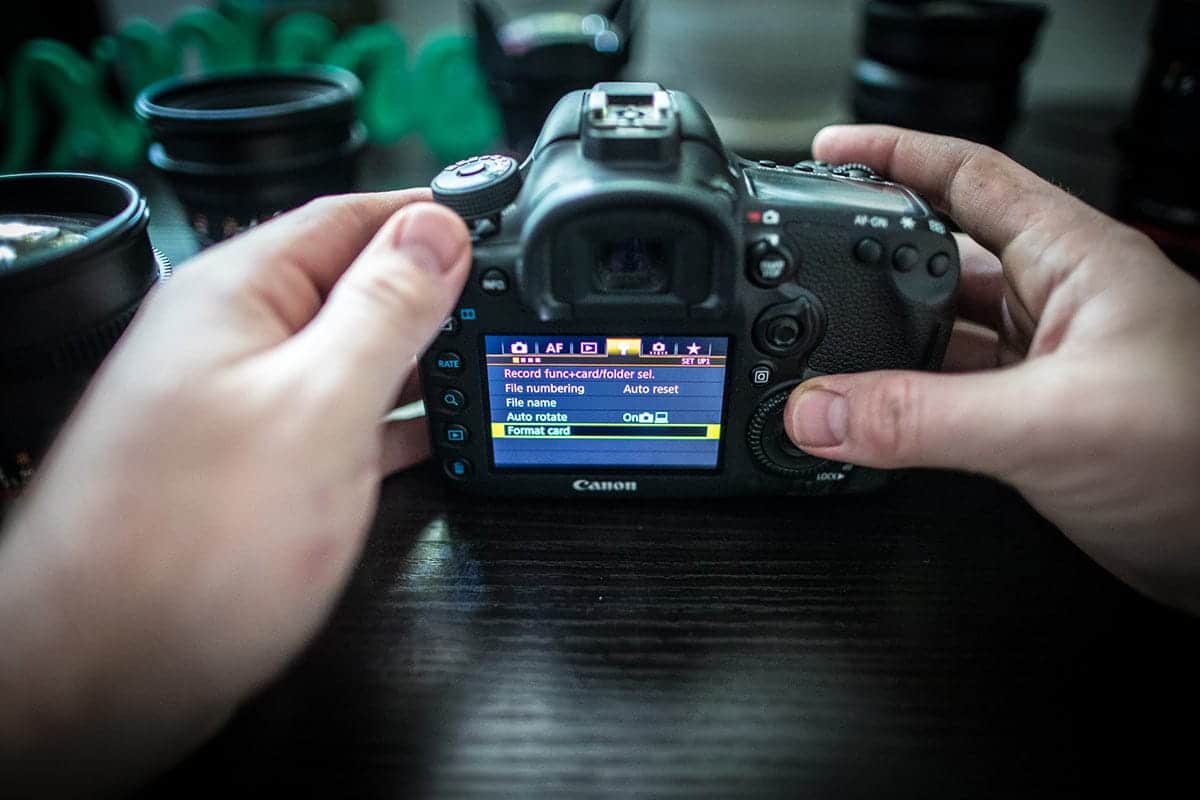
- Find the Format option – Look for “Format Card” or “Format Memory Card” under settings.
- Select and confirm – Choose the format option and confirm. Some cameras ask you to double-check before starting.
- Wait for the process – It usually takes less than a minute.
Pro tip: Always format the card in the camera you’ll use, not on your computer. This avoids compatibility problems.
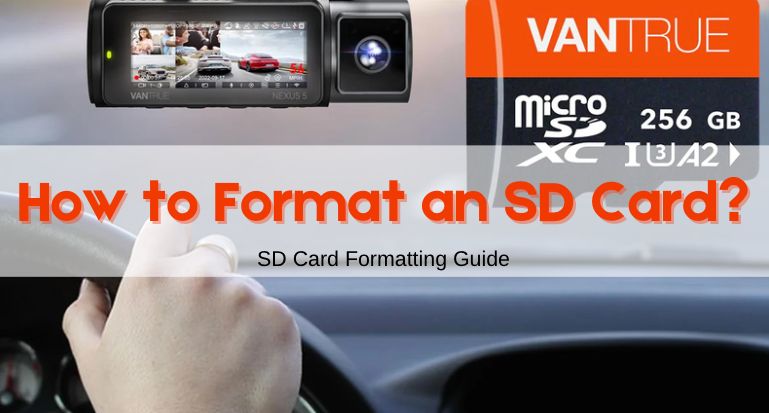
Credit: www.vantrue.com
Common Mistakes To Avoid
- Formatting in the wrong device: Don’t format your camera card in a computer or a different camera. File systems may differ, causing issues.
- Interrupting the process: Never turn off the camera or remove the card while formatting.
- Skipping regular formatting: Format every few weeks or after transferring files, not just when you see errors.
Camera Menu Differences
Each camera brand has a slightly different menu. Here’s how the formatting steps compare for popular brands:
| Brand | Menu Location | Format Name |
|---|---|---|
| Canon | Setup | Format Card |
| Nikon | Setup | Format Memory Card |
| Sony | Settings | Format |
:max_bytes(150000):strip_icc()/004-how-to-format-an-sd-card-for-your-camera-a99281596fa34add845a0f0df2209441.jpg)
Credit: www.lifewire.com
What Beginners Miss
- Formatting does not fix physical damage. If your card is physically broken or often fails, replacing it is best.
- Full vs. quick format: Cameras do a quick format, which is fine for most uses. For deep cleaning, use a computer’s full format, but only if the card is slow or corrupt.
Frequently Asked Questions
How Often Should I Format My Memory Card?
Format after each large transfer or at least monthly. This keeps the card error-free and fast.
Will Formatting Delete My Photos Forever?
Yes. Formatting erases all data. Always back up before formatting.
Can I Format My Card With A Computer?
Yes, but it’s safer to format in your camera to avoid file system mismatches.
Is Formatting The Same As Deleting?
No. Deleting removes files but keeps the file system intact. Formatting resets everything for better performance.
Where Can I Learn More About Sd Card Care?
Check the official SD Association FAQ for expert advice.
Reformatting your camera memory card is quick, but the benefits last. A healthy card means fewer errors and safer memories, so make this step a habit in your workflow.
Credit: progradedigital.com