Formatting your camera’s memory card is essential for keeping your photos safe and your device running smoothly. It removes old files, fixes errors, and prepares the card for new pictures. Many beginners think simply deleting files is enough, but proper formatting is much more effective. Let’s explore the best way to format your memory card and avoid common mistakes.
Table of Contents
Why Format Your Memory Card?
Formatting does more than just erase files. It:
- Removes hidden data and corrupted files
- Optimizes speed for photo storage
- Prepares the card for your camera’s file system
For example, if you switch cards between cameras, formatting ensures compatibility. According to SanDisk, formatting regularly reduces risk of card errors by up to 70%.
Steps To Format Your Memory Card
1. Back Up Your Photos
Before formatting, copy all pictures and videos to your computer. Formatting will erase everything, and lost files are often impossible to recover.
2. Insert The Card Into Your Camera
Use your camera’s card slot, not a computer or card reader. Formatting within the camera sets up the correct file system.
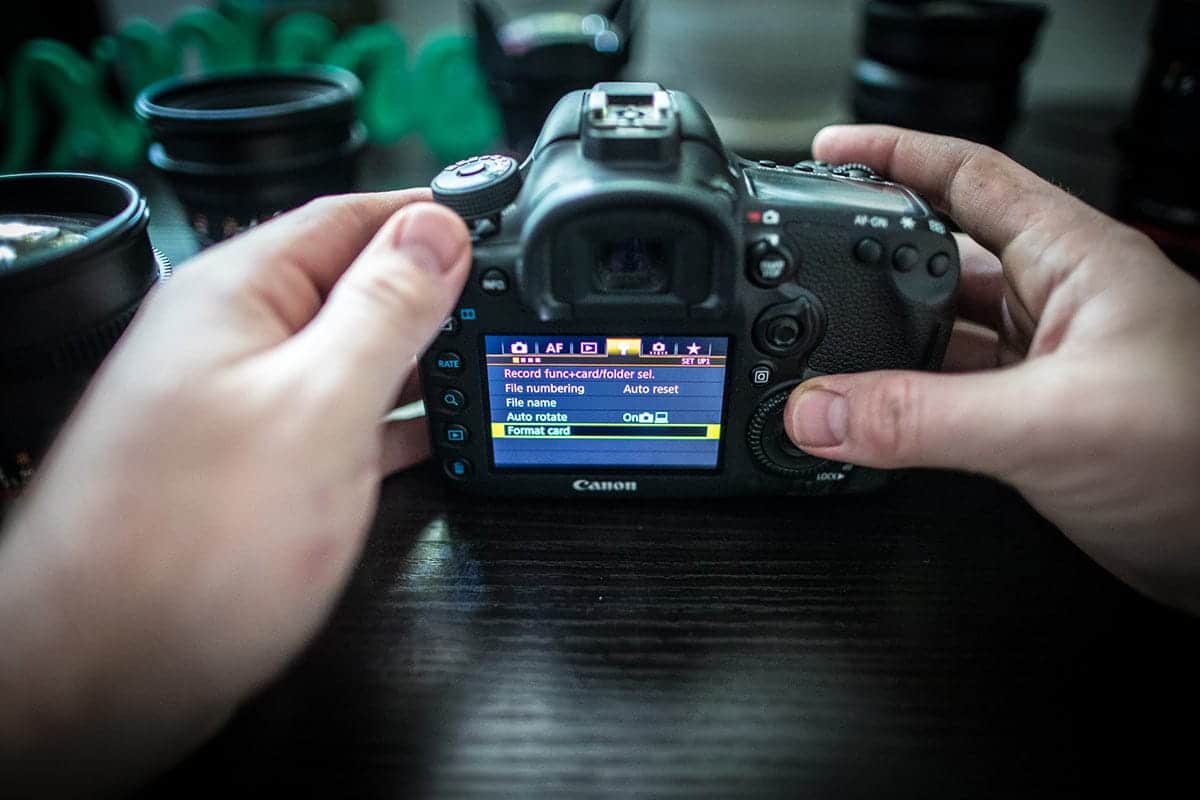
3. Find The Format Option
Go to your camera’s menu. Look for “Format Card,” “Memory Card Format,” or similar.
4. Select And Confirm
Choose the format option and confirm. Some cameras may ask for a second confirmation to prevent accidental formatting.
5. Wait For Completion
The process usually takes a few seconds. Never turn off the camera or remove the card while formatting.
Here’s a quick comparison of formatting methods:
| Method | Speed | Reliability | Recommended For |
|---|---|---|---|
| Camera | Fast | High | Photos & Videos |
| Computer | Medium | Medium | File Transfer |
:max_bytes(150000):strip_icc()/GettyImages-136612668-5c640cc5c9e77c00010a4ff4.jpg)
Credit: www.lifewire.com
Common Formatting Mistakes
- Formatting on a computer: Can cause file system errors in some cameras.
- Not backing up files: Leads to permanent loss.
- Using low-quality cards: Increases risk of errors. Buy reputable brands.
Many people miss the step of checking the card’s capacity and speed. Always match your card’s specs to your camera’s requirements for best performance.
Memory Card Types And Compatibility
Different cameras support different card types. Here’s a quick overview:
| Card Type | Max Capacity | Common Devices |
|---|---|---|
| SD | 2GB | Older Cameras |
| SDHC | 32GB | DSLRs, Compacts |
| SDXC | 2TB | Advanced DSLRs |

Credit: havecamerawilltravel.com
Practical Tips For Safe Formatting
- Format cards in-camera before every important shoot
- Don’t remove cards while formatting
- Use high-speed cards for 4K video
- Check for firmware updates
If you need more details, visit SanDisk’s official guide.
Frequently Asked Questions
How Often Should I Format My Memory Card?
Format before each major photo session or after transferring files. This keeps the card reliable.
Can I Format An Sd Card On My Computer?
Yes, but it’s safer to format using your camera. This avoids file system issues.
Will Formatting Fix Card Errors?
Sometimes. If errors persist after formatting, the card may be damaged.
Does Formatting Delete Everything?
Yes, all files are erased. Always back up before formatting.
What’s The Best Card Type For 4k Video?
SDXC cards with high speed ratings (UHS-I or UHS-II) are ideal for 4K recording.
Formatting your memory card is simple but important. By following these steps, you protect your photos and help your camera work at its best.
Credit: progradedigital.com