If you find your Canon camera displaying a “memory card locked” message, you’re not alone. Many users face this issue, and it can be frustrating, especially when you want to take photos quickly. This guide will explain simple steps to unlock your memory card and get back to shooting.
You’ll also learn why this happens and how to avoid it in the future.
Table of Contents
Understanding The Lock On Canon Memory Cards
Canon cameras use SD cards, which have a physical lock switch on the side. If this switch is in the “lock” position, you cannot save or delete photos. The camera will show a warning, and you won’t be able to take new pictures.
Common Signs Of A Locked Card
- “Memory card locked” or “Card is write protected” message
- Unable to save or delete files
- Images cannot be formatted
How To Unlock A Memory Card: Step-by-step
Unlocking your SD card is usually simple. Here’s what you need to do:
- Turn off your camera and remove the SD card carefully.
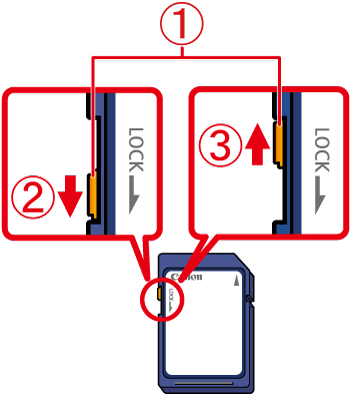
- Locate the tiny switch on the left side of the card. It should slide up and down.
- Slide the switch up towards the end with the connectors. This is the “unlock” position.
- Insert the card back into your camera and turn it on.
- Test by taking a photo. If the message is gone, your card is unlocked.
Quick Comparison: Locked Vs. Unlocked Position
| Switch Position | Function |
|---|---|
| Up (toward connectors) | Unlocked (can write/delete) |
| Down (away from connectors) | Locked (write-protected) |

Credit: www.reddit.com
What If Unlocking Doesn’t Work?
Sometimes, the lock switch gets loose or the card slot inside the camera is damaged. Here are more solutions:
- Try another SD card to check if the issue is with the card or camera.
- Use a different device (like a computer SD card reader) to unlock and test the card.
- Replace the SD card if the switch is broken or keeps sliding to “lock.”
- Clean the card slot gently with compressed air if dust is suspected.
Sd Card Problems And Fixes
| Problem | Possible Fix |
|---|---|
| Card keeps locking itself | Replace with a new card |
| Camera won’t read any card | Check camera’s card slot |
| Files can’t be deleted | Check physical lock switch |
Preventing Future Lock Issues
- Always handle SD cards by the edges.
- Avoid sliding the lock switch often—it can wear out.
- Keep cards in a protective case.
- Do not force the card into the slot.
Credit: hk.canon
Frequently Asked Questions
Why Does My Canon Camera Say “memory Card Locked”?
Your SD card’s physical switch is in the “lock” position, making it write-protected.
Can I Unlock The Card Using Camera Settings?
No, you must use the physical switch on the SD card. Camera settings cannot change this.
What If The Lock Switch Is Broken?
If the switch is loose or missing, replace the card. A damaged switch can cause data loss.
Is It Safe To Use Software To Unlock The Card?
Software tools cannot override the hardware lock. Only the physical switch works.
Where Can I Learn More About Sd Card Types?
Visit Wikipedia’s Secure Digital page for detailed information.
Unlocking your memory card is usually a quick fix. Take care of your SD cards, and your Canon camera will be ready for every moment.