Unlocking a memory card on a camera is a common problem, especially for beginners. If your camera suddenly says “memory card locked,” you can’t take photos or videos. Understanding how to fix this issue quickly helps you get back to shooting without stress.
In this guide, you’ll learn why memory cards lock, how to unlock them, and how to avoid common mistakes.
Table of Contents
Why Memory Cards Get Locked
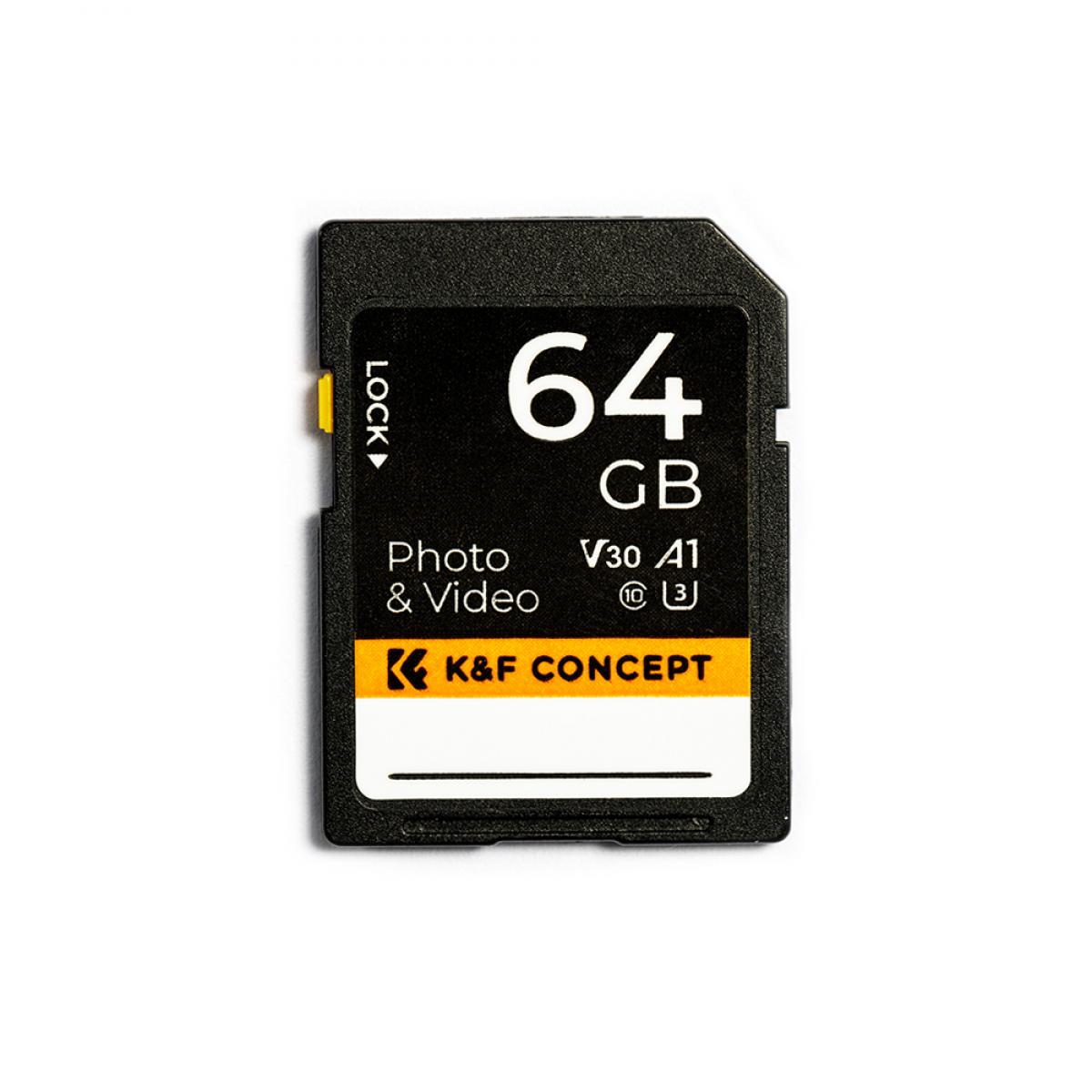
Many SD cards have a small switch on the side called the write protection switch. If this switch moves to “lock,” your camera cannot save new files. Sometimes, the switch gets bumped when inserting or removing the card. Some cameras also display errors if the card has physical damage or formatting issues.
| Reason | Camera Message |
|---|---|
| Write protection switch is ON | “Card locked” or “Card protected” |
| File system error | “Card error” or “Unable to write” |
| Physical damage | “Cannot read card” |
How To Unlock Your Memory Card
Follow these simple steps to unlock your card and use it again:
- Remove the card from your camera carefully.
- Find the write protection switch on the left edge of the card.
- Slide the switch away from the “lock” position. Most cards have labels showing “lock” and “unlock.”
- Insert the card back into your camera.
- Turn on the camera and check if the error disappears.
If your card is still locked, try these extra steps:
- Clean the card contacts with a dry, lint-free cloth.
- Test the card in another camera or card reader.
- Format the card using your camera menu (this erases all data).
| Action | Effect |
|---|---|
| Move switch to “unlock” | Allows saving new files |
| Clean contacts | Improves connection |
| Format card | Removes errors but deletes data |

Credit: www.youtube.com
Common Mistakes To Avoid
Many beginners overlook these points:
- Forcing the card into the slot can break the switch.
- Ignoring the lock switch and formatting the card may not fix the problem.
- Using old or damaged cards can lead to more errors.
Some people think only software can unlock a card, but most issues are hardware-related.
| Mistake | Result |
|---|---|
| Forcing card | Physical damage |
| Ignoring switch | Card remains locked |
| Using damaged card | Frequent errors |
Preventing Future Lock Issues
To avoid problems:
- Always check the switch before inserting the card.
- Store cards in protective cases.
- Replace cards if the switch feels loose or broken.
According to SD Association, handling cards gently and keeping them clean increases their lifespan.
Credit: www.kentfaith.com
Frequently Asked Questions
How Do I Know If My Sd Card Is Locked?
Check the switch on the left side of the card. If it’s in the “lock” position, your camera will show a “card locked” message.
Can A Locked Memory Card Be Fixed Without Formatting?
Yes. Move the switch to “unlock. ” Only format the card if errors continue.
Why Does My Camera Keep Saying The Card Is Locked?
Most likely, the switch has moved to “lock. ” Sometimes, dust or damage can also cause this error.
What If My Card Switch Is Broken?
Avoid using the card. Replace it, as a broken switch can cause data loss.
Is It Safe To Use A Locked Card In Other Devices?
No. Locked cards cannot store new data and may not work in other devices.
Unlocking a memory card is simple once you know where to look. By checking the switch and handling the card with care, you can solve most issues quickly and keep shooting with confidence.