Using your iPhone camera in low light can be tricky. Sometimes, the flash is the only way to capture a clear photo. Many people struggle to find the flash controls, especially when Apple updates the Camera app. If you want to use flash for photos or videos, this guide will help you turn on flash quickly, avoid common mistakes, and understand extra settings.
Table of Contents
Turning On Flash For Photos
Most iPhones use a simple interface, but the flash setting is not always obvious. Follow these steps:
- Open the Camera app.
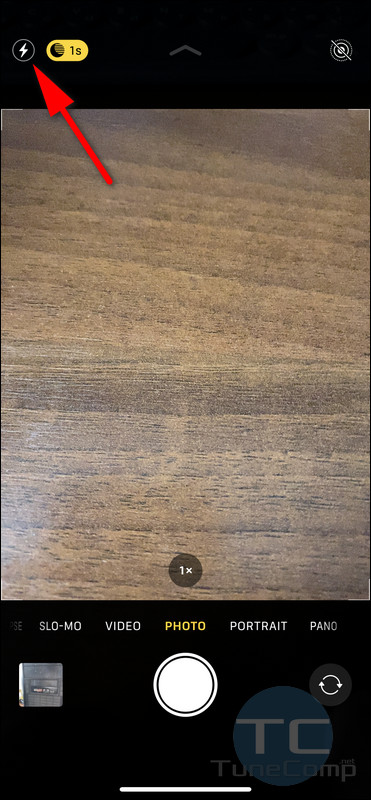
- Look for the flash icon (lightning bolt) at the top of the screen.
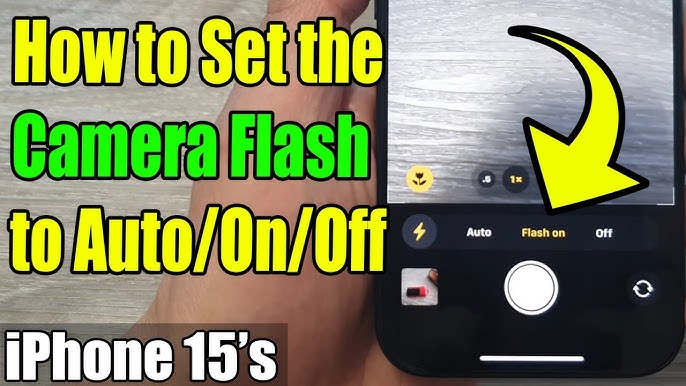
- Tap the icon. You’ll see three options:
- Auto: The iPhone decides when to use flash.
- On: Flash fires every time you take a photo.
- Off: Flash never fires.
- Select On to force the flash.
Newer models (like iPhone 13 and later) may hide the flash icon when using Portrait or Night Mode. In these cases, switch to standard Photo mode.
| iPhone Model | Flash Available? | Flash Location |
|---|---|---|
| iPhone 12 | Yes | Top left |
| iPhone 14 | Yes | Top center |
| iPhone SE | Yes | Top left |
Using Flash For Video
Flash is also useful when recording videos in dark places. Here’s how to turn it on:
- Open the Camera app.
- Swipe to Video mode.
- Find the flash icon (sometimes labeled as “Torch”).
- Tap to activate flash. The light stays on during recording.
Not all iPhones let you use flash in slow-motion or time-lapse modes. Always check the icon before filming.
| Mode | Flash Supported? | Flash Icon Location |
|---|---|---|
| Photo | Yes | Top of screen |
| Video | Yes | Top of screen |
| Portrait | Limited | Not always visible |
Credit: tunecomp.net
Smart Tips For Better Results
- Clean your flash lens before shooting. Dirt reduces brightness.
- Flash range is limited (about 1–2 meters). Move closer to your subject.
- Avoid direct flash in mirrors or glass to prevent glare.
Most users miss the fact that Auto mode can sometimes ignore flash even in dark settings. For consistent lighting, always select On.
Another common mistake: forgetting that the flash may be disabled if your battery is very low. Charge your phone if the flash won’t turn on.
Frequently Asked Questions
Why Can’t I See The Flash Icon On My Iphone Camera?
In some modes (like Portrait or Night Mode), the flash icon disappears. Switch to standard Photo or Video mode.
Does Flash Work During Facetime Calls?
No, the iPhone flash only works in the Camera app, not for FaceTime or other apps.
Can I Adjust Flash Brightness?
iPhones don’t let you change flash brightness for photos. You can adjust brightness for the flashlight in Control Center, but not during shooting.
Will Flash Drain My Battery?
Yes, using flash uses more battery. If your phone is low, the flash may stop working.
Where Can I Get More Details About Iphone Camera Features?
Visit the official Apple Support page for more information.
Turning on flash is easy once you know where to look. With these steps and tips, you can capture clearer photos and videos even in the darkest places. Always check your settings and keep your camera clean for the best results.
Credit: www.youtube.com