Capturing photos in low light can be tricky if you don’t know how to use your camera’s flash. Whether you’re using a smartphone or a digital camera, turning on the flash can help you get clear, bright images when natural light isn’t enough. Many people struggle to find the right flash settings, especially on newer devices. This guide will show you how to turn on the flash, avoid common mistakes, and choose the best settings for your needs.
Table of Contents
Turning On Flash On Smartphones
Most people take pictures with their phones. Here’s how to turn on the flash for the two most common types:
Iphone
- Open the Camera app.
- Tap the flash icon (lightning bolt) at the top left or right.
- Choose On to force the flash, Auto for automatic use, or Off to disable.
Android
- Open your phone’s Camera app.
- Find the flash icon (usually a lightning bolt).
- Tap it and choose On, Auto, or Off.
Some Android phones hide extra options in the settings menu. If you don’t see the flash icon, tap the gear symbol.
Turning On Flash On Digital Cameras
Digital cameras, especially DSLRs and point-and-shoot models, have their own ways to control the flash.
- Pop-up flash: Press the dedicated button with a lightning bolt symbol.
- Menu settings: Go to the flash section and select On or Fill Flash.
- For advanced cameras, switch to P, A, S, or M mode for full control.
Here’s a quick comparison of flash settings on common camera types:
| Camera Type | How to Turn On Flash | Manual/Auto Option |
|---|---|---|
| iPhone | Tap lightning icon | Yes |
| Android | Tap lightning icon or settings | Yes |
| DSLR | Pop-up button/menu | Yes |

Credit: www.youtube.com
Choosing The Right Flash Setting
Not all situations need the same flash mode. Here are the main options:
- Auto: The camera decides when to use the flash.
- On: The flash fires every time.
- Off: The flash is disabled.
- Red-eye reduction: Special mode to prevent red eyes in portraits.
A surprising fact: Using Auto mode indoors can sometimes result in no flash, so check your setting if your photos are too dark.
Common Flash Problems And Fixes
Many beginners face these issues:
- Washed-out faces: Move the subject further from the camera.
- Red eyes: Use red-eye mode or edit after shooting.
- Flash not firing: Check battery level or if another app is using the camera.
Here’s a summary of flash problems and quick fixes:
| Problem | Reason | Solution |
|---|---|---|
| Flash doesn’t fire | Flash is off/battery low | Turn on flash/charge battery |
| Red-eye | Low ambient light | Enable red-eye mode |
| Harsh shadows | Subject too close | Step back a little |
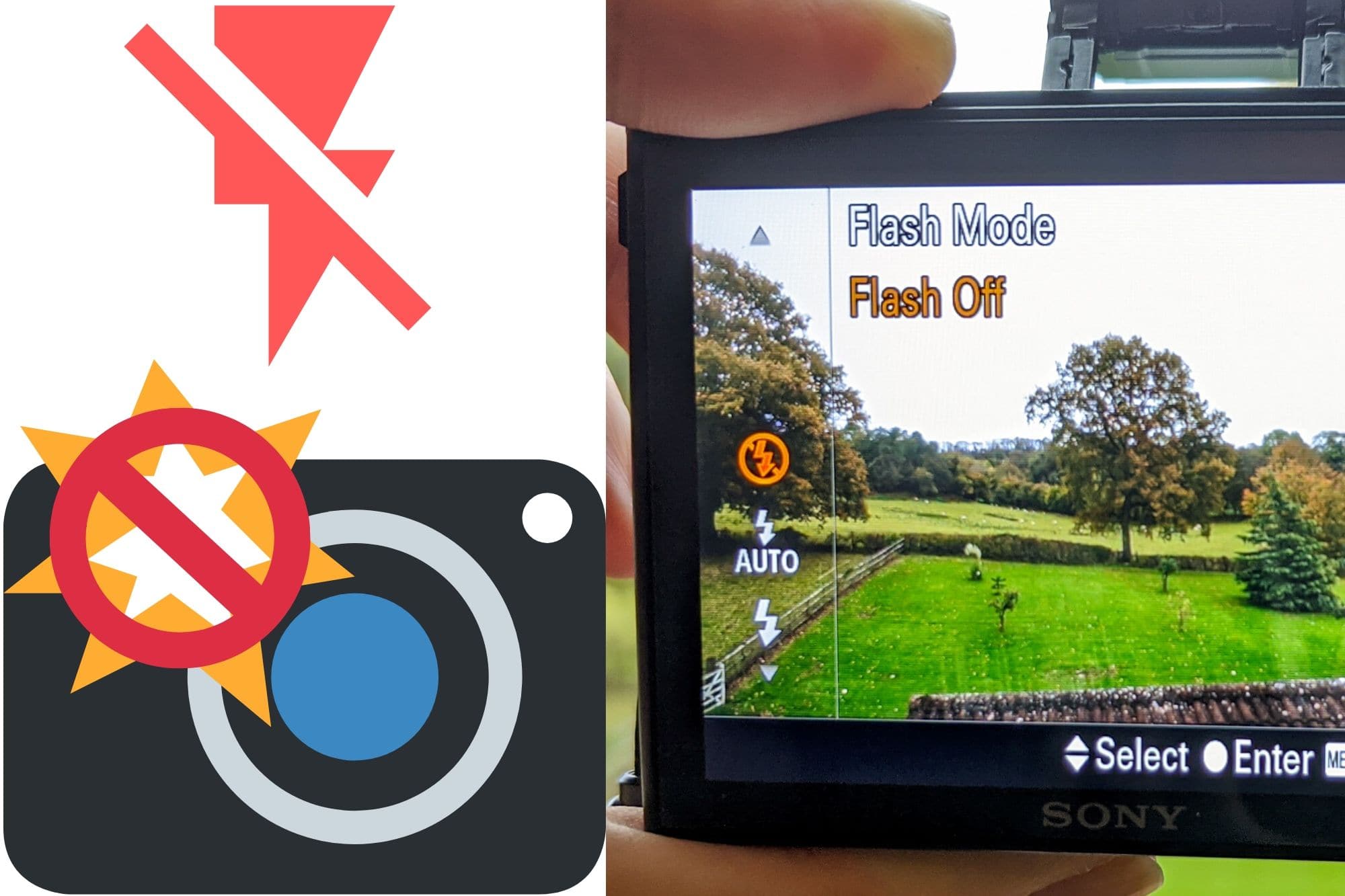
Credit: www.findingtheuniverse.com
Practical Tips For Better Flash Photos
- Clean your camera’s flash lens for clearer light.
- Try different distances to avoid overexposed faces.
- Use fill flash outdoors to lighten shadows on sunny days.
If you want to learn more about camera flash technology, check out the Wikipedia page on camera flash.
Frequently Asked Questions
Why Doesn’t My Flash Work In Some Camera Apps?
Some apps block the flash feature or require special permissions. Try using your phone’s default camera app.
Can I Force Flash To Stay On For Every Shot?
Yes, select the On mode (not Auto) in your camera’s flash settings.
Is Flash Good For All Types Of Photos?
No, flash can create harsh light or strange colors in some scenes. Use it mainly in low light.
How Do I Turn On Flash For Video Recording?
Most phones have a separate torch or video light icon in video mode. Tap it to enable.
Will Using Flash Drain My Battery Quickly?
Yes, frequent use of flash can reduce battery life, especially on smartphones.

Credit: www.reddit.com