Managing action camera footage storage can be tricky, especially as video quality improves and file sizes get bigger. If you want smooth editing, quick access, and safe backups, you need a smart plan. Many beginners think a single SD card or hard drive is enough, but this often leads to lost files or slow workflows.
Let’s explore practical ways to keep your footage organized and secure without feeling overwhelmed.
Table of Contents
Choosing The Right Storage Devices
Action cameras usually record in high-definition, with 4K video consuming about 375 MB per minute. This means a 64 GB card fills up in less than three hours of footage. For reliable storage, compare device options:
| Device | Capacity | Speed | Portability |
|---|---|---|---|
| SD Card | 32–512 GB | Fast | Very Portable |
| External SSD | 500 GB–2 TB | Very Fast | Portable |
| Cloud Storage | Unlimited | Depends on Internet | Accessible Anywhere |
For travel or sports, SD cards and external SSDs are best. Cloud storage is ideal for backup after you return home.
Organizing Your Footage
If you shoot regularly, it’s easy to lose track of files. Set up a clear folder system:
- Name folders by date and location (e.g., “2026-06-15_GrandCanyon”).
- Separate raw footage from edited videos.
- Use subfolders for different camera angles or activities.
This method speeds up searching and editing. Most people skip folder naming, but it’s a huge time saver.
| Folder Name | Contents |
|---|---|
| 2026-06-15_GrandCanyon | Raw clips, drone shots, GoPro angles |
| Edits | Finished videos, highlights |
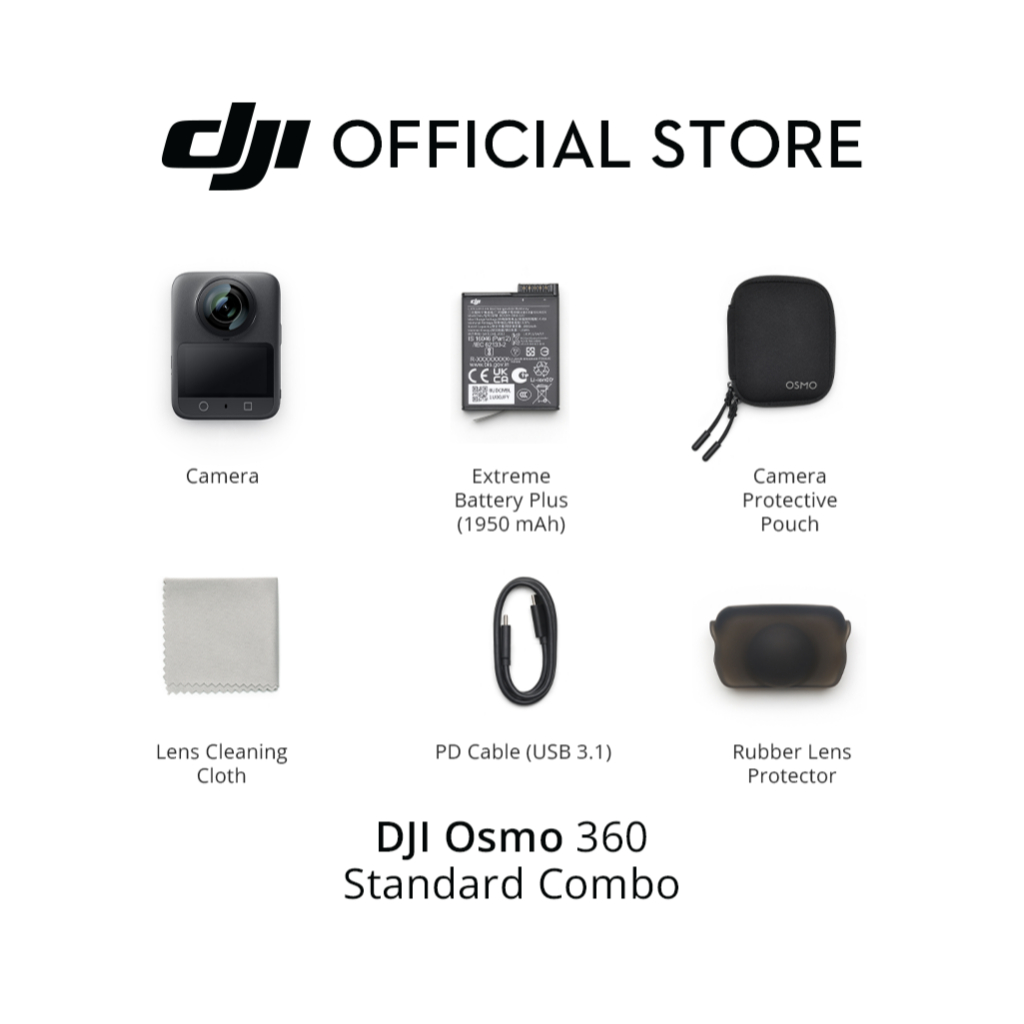
Credit: djiph.com
Backing Up Footage
Losing footage is painful, especially after hours of recording. Always keep at least two backups. Use a simple backup routine:
- Copy files from SD card to external SSD after each shoot.
- Upload important clips to cloud storage weekly.
- Check backup files for errors.
A common mistake is relying on just one backup. Hard drives can fail, and SD cards can get lost. For safety, try using services like Google Drive for cloud backup.
Quick Tips For Efficient Storage
- Delete unwanted clips before transferring to save space.
- Use video compression tools for less important footage.
- Label SD cards to avoid mixing up recordings.
- Upgrade to UHS-II SD cards for faster transfers.
| Tip | Benefit |
|---|---|
| Compress Videos | Save up to 50% space |
| Label Cards | Prevent accidental overwrites |
With these strategies, you’ll spend less time sorting files and more time creating great videos.
Staying organized with action camera footage is easier than you think. Choose the right devices, set up folders, and back up regularly. Most importantly, don’t rely on just one backup. With practice, your workflow will be faster and safer.

Credit: www.amazon.com
Frequently Asked Questions
How Much Storage Do I Need For 4k Action Camera Footage?
For 4K, plan for at least 64 GB per hour of footage. Large projects may need 256 GB or more.
What’s The Best Way To Organize Action Camera Files?
Use folders named by date and location. Separate raw footage from edited videos for easy access.
Is Cloud Storage Reliable For Backing Up Videos?
Yes, cloud storage is safe and accessible anywhere, but upload speeds depend on your internet connection.
Should I Delete Clips On My Sd Card After Transferring?
Yes, deleting old clips frees up space and reduces confusion, but confirm files are safely backed up first.
Can I Use Regular External Hard Drives For Action Camera Video?
Yes, but external SSDs offer faster speeds and better durability, especially for large video files.