Putting a memory card into a camera seems simple, but many people—especially beginners—make mistakes that lead to lost photos or camera errors. Understanding the right way to do it can save you time and protect your equipment. Whether you use a DSLR, mirrorless, or compact camera, this guide will help you insert a memory card correctly and avoid common problems.
Table of Contents
Preparing Your Camera And Memory Card
Before anything, turn off your camera. This step is critical, but often skipped. Inserting or removing a memory card while the camera is on can corrupt your files or damage the card.
Next, check the type of memory card your camera uses. Most modern cameras use SD cards, but some, like Sony and Canon, may use CFexpress or microSD with adapters. If you’re unsure, your camera’s manual or the label near the card slot usually tells you.
Here’s a quick comparison of common card types:
| Card Type | Size | Typical Use |
|---|---|---|
| SD/SDHC/SDXC | 32x24mm | Most DSLRs, mirrorless, compacts |
| microSD | 15x11mm | Action cams, phones, with adapters |
| CFexpress | 38.5×29.8mm | Pro video, high-end cameras |
Inserting The Memory Card
- Open the memory card compartment. Most cameras have a small door on the side or bottom. Slide or push the latch to open it.
- Check the card’s orientation. The label usually faces the back of the camera, but not always. Look for a diagram inside the slot or check your manual.
- Insert the card gently. Don’t force it—if it resists, you may be using the wrong orientation or card type.
- Push until it clicks. You’ll feel a soft click when the card is securely in place.
- Close the compartment door. Make sure it snaps shut; most cameras won’t power on if the door isn’t closed properly.
Here’s a quick visual guide:
| Step | What to Do | Why It Matters |
|---|---|---|
| 1 | Turn off camera | Prevents data loss |
| 2 | Open compartment | Access slot safely |
| 3 | Insert card | Correct orientation avoids damage |
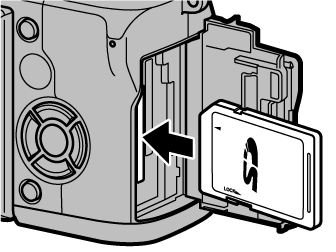
Credit: fujifilm-dsc.com
Common Mistakes And Pro Tips
- Never force a card into the slot. Forcing can bend pins or break the card.
- If your camera shows “No Card” after inserting, remove and reinsert it. Sometimes it isn’t seated fully.
- For new or reformatted cards, format the card in the camera before use. This ensures compatibility and reduces errors.
- Store cards in a case to avoid dust and moisture.
A surprising fact: Many camera errors come from dirty or damaged contacts on the card. A quick wipe with a clean, dry cloth can solve many issues.
Frequently Asked Questions
How Do I Know Which Memory Card My Camera Uses?
Check your camera manual or the label near the card slot. Most cameras list the supported card type.
Can I Use A Microsd Card With An Adapter?
Yes, but performance may be slower, and not all adapters fit tightly. Use full-size SD cards if possible.
What Does “format Card” Mean, And Do I Need To Do It?
Formatting erases all data and prepares the card for your camera. Do it in-camera before first use for best results.
Is It Safe To Remove The Card While The Camera Is On?
No. Always turn off the camera first to avoid file corruption or hardware problems.
Where Can I Learn More About Camera Memory Cards?
A good resource is the Wikipedia SD Card page for detailed technical info.
Taking these careful steps helps your camera and photos stay safe. With the right habits, inserting a memory card becomes easy and worry-free.

Credit: www.youtube.com