The Nikon Coolpix A900 is a compact, high-zoom camera that gives everyday photographers powerful features without the bulk of a DSLR. If you want sharp photos, 4K videos, and creative control in a pocket-sized device, this camera is a strong choice. But to get the most out of it, you need to know how to use its main features and settings. This guide walks you through essential steps, useful tips, and common mistakes so you can start shooting like a pro—even if you’re new to cameras.
Table of Contents
Getting Started With Your Nikon Coolpix A900
Before taking your first photo, get familiar with the camera’s basic setup.
- Charge the battery fully using the included charger. A full charge takes about 2 hours.
- Insert the memory card (SD, SDHC, or SDXC) into the slot. The camera won’t save photos without it.
- Attach the wrist strap for safety—these small cameras are easy to drop.
Turn on the camera by pressing the power button on the top. The lens extends and the LCD screen turns on. You’ll see simple instructions to set your language, date, and time. Use the arrow buttons to navigate and press OK to confirm.
Key Features And Controls
Understanding the main buttons and dials will help you shoot confidently.
- The Mode dial on top lets you switch between Auto, Scene, Creative, and Manual modes.
- The Zoom lever around the shutter button controls the powerful 35x optical zoom—great for distant subjects.
- The Menu button brings up the settings menu, where you can adjust resolution, ISO, and other options.
- The Movie record button (red dot) starts and stops video recording instantly.
Here’s a quick look at the most-used buttons and their functions:
| Button/Dial | Main Function |
|---|---|
| Shutter Button | Take a photo |
| Zoom Lever | Zoom in/out |
| Mode Dial | Choose shooting mode |
| Menu Button | Open settings |
| Playback Button | View photos/videos |
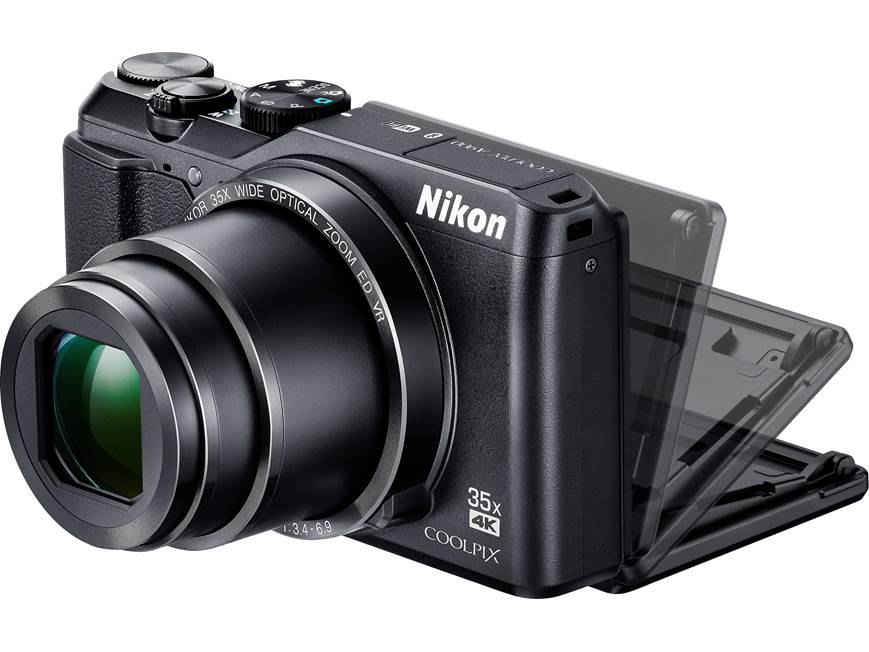
Credit: www.crutchfield.com
Shooting Photos: Step-by-step
The A900 is designed for ease, but using the right mode makes a big difference.
Auto Mode
For most situations, set the Mode Dial to Auto (the green camera icon). The camera adjusts settings automatically for you.
- Frame your subject using the LCD screen.
- Half-press the shutter button to focus. The camera beeps when focus is locked.
- Press fully to take the photo.
Scene Modes
If you know what you’re shooting (like landscapes or portraits), turn the Mode Dial to Scene. Choose from pre-set options like Night, Portrait, or Sports for better results.
Manual Mode
Manual mode (M) gives you control over shutter speed and aperture. This is useful for creative shots, like motion blur or sharp landscapes. Use the dial to adjust settings and watch the exposure meter on the screen.
Non-obvious tip: In bright daylight, lower the ISO to 80 for the cleanest images. Many beginners leave ISO on Auto, which can add noise in clear conditions.
Using The Zoom Without Blurry Photos
The A900’s 35x optical zoom is one of its best features. But zooming far can make photos blurry if you’re not careful.
- Hold the camera steady with both hands.
- When zoomed in fully, rest your elbows on a table or use a wall for support.
- Use the Self-Timer (2 seconds) to avoid shaking the camera when pressing the shutter.
Pro insight: Digital zoom reduces image quality. Stick with optical zoom for the sharpest results.

Credit: therunngun.com
Shooting 4k Video
The A900 records 4K UHD video at 30 frames per second. Switch to video mode using the Mode Dial, or just press the red Movie record button.
- Use a fast memory card (at least UHS-I U3) for smooth 4K recording.
- Videos will fill your card quickly—10 minutes of 4K video takes about 4GB.
Practical tip: For long recordings, set video quality to Full HD. It saves space and battery life.
Transferring Photos And Videos
You can transfer images to a computer or smartphone in two main ways:
- USB cable: Connect directly to your PC or Mac. The camera appears as a storage drive.
- Wireless transfer: Use Nikon’s SnapBridge app (Bluetooth/Wi-Fi) to send photos to your phone.
| Transfer Method | Speed | Best For |
|---|---|---|
| USB Cable | Fast | Large batches |
| SnapBridge App | Medium | Sharing to social media |
Common mistake: Forgetting to pair the camera and phone before shooting. Set up SnapBridge in advance for smooth transfers.
Camera Settings That Matter
A few settings have a big impact on your results.
- Image Size: Set to 20 MP (highest) for best quality.
- ISO: Lower is better in bright light; higher helps in low light but adds noise.
- White Balance: Use Auto for most scenes, but switch to “Cloudy” or “Incandescent” if colors look strange.
- Vibration Reduction: Turn it on to help prevent blur.
Advanced insight: Turn off Digital Zoom in the menu for sharper photos. The camera uses it by default, but optical zoom always gives better quality.
Battery Life And Storage Tips
The A900’s battery lasts about 270 shots per charge (CIPA standard). For a day trip, carry a spare battery if you plan to shoot a lot.
Memory cards fill up quickly with high-res images and 4K video. A 32GB card holds about 1,200 photos or 40 minutes of 4K video.
Basic Troubleshooting
- If the camera won’t turn on, check that the battery is charged and inserted correctly.
- If images look blurry, clean the lens and check if Vibration Reduction is enabled.
- If you can’t take pictures, the memory card might be full or locked (check the small switch on the card).
For more details, you can visit the official Nikon website.
Frequently Asked Questions
How Do I Connect The Nikon Coolpix A900 To My Smartphone?
Download Nikon’s SnapBridge app. Pair the camera via Bluetooth or Wi-Fi by following the on-screen instructions. This lets you transfer photos and control the camera remotely.
What Memory Card Works Best With The A900?
Use an SDHC or SDXC card with UHS-I speed (at least Class 10) for photos, and U3 for 4K video. Brands like SanDisk and Lexar are reliable.
Can The A900 Shoot In Raw Format?
No, the Coolpix A900 saves images in JPEG only. This is simpler for beginners but limits advanced editing.
How Do I Clean The Lens Safely?
Use a soft lens brush or microfiber cloth. Never wipe with your shirt or paper towels—these can scratch the lens.
Why Does My Camera Say “memory Card Error”?
This usually means the card is not inserted properly, is full, or needs formatting. Try reinserting or formatting the card in the camera’s setup menu.
With practice, the Nikon Coolpix A900 can be your go-to camera for travel, family events, and creative projects. Learning its main features and avoiding common beginner mistakes will help you capture memories with confidence.

Credit: www.dpreview.com