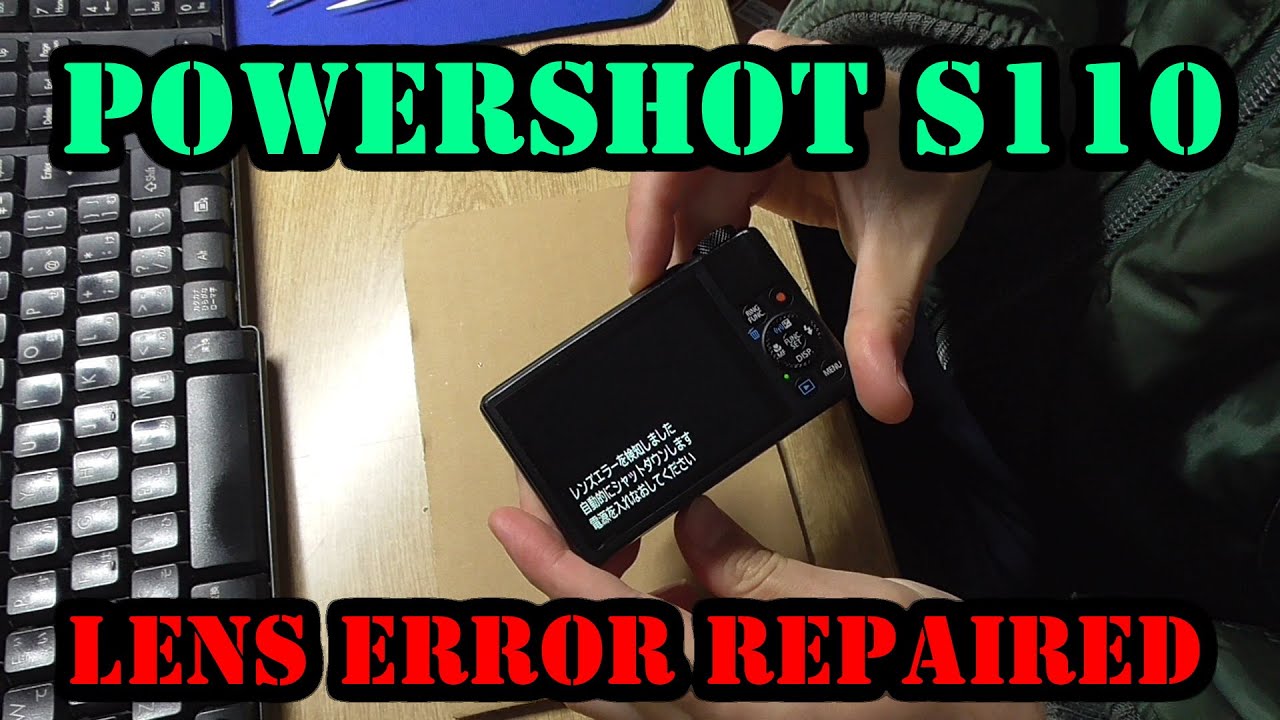
If you own a Canon Powershot S110, you may have faced the annoying “Lens Error” message. This problem can turn a good photo day into a stressful one. The lens error often means the lens can’t extend, retract, or focus correctly. But the good news is: you can often fix it yourself. With some care and patience, your camera can be back in action. Let’s look at why this happens, how to fix it, and what to avoid.
Table of Contents
What Causes Lens Error On Canon Powershot S110?
Before you start fixing, it helps to know what’s wrong. Lens error usually means the lens mechanism is stuck or blocked. Common reasons include:
- Dust or sand inside the lens gears
- Dropping the camera, even from a short height
- Battery failure during lens movement
- Trying to power on with an obstruction (like a finger or case)
This issue is not unique to the S110. Many compact cameras with retractable lenses face it, but the S110 is known for its sensitive mechanism.
Quick Troubleshooting Steps
If your camera shows a lens error, do not force the lens. Here’s what to try first:
1. Restart The Camera
Turn it off, remove the battery, wait 10 seconds, then reinsert and power on.
2. Check The Battery
Weak batteries often cause lens errors. Charge fully or use a fresh battery.
3. Inspect For Obstructions
Make sure nothing is blocking the lens.
These quick checks solve minor errors, especially after low battery or accidental button presses.

Credit: www.reddit.com
Manual Fix Methods
If the basic steps did not help, it’s time for more hands-on methods. Use these only if your warranty has expired or you’re comfortable with gentle repairs.
1. Gently Tapping The Camera
Sometimes, a light tap helps free stuck gears.
- Hold the camera with the lens facing down.
- Tap the camera’s side against your palm—not too hard.
- Turn it on and off to see if the lens moves freely.
Tip: Never hit the lens directly. This method works best if dust is the problem.
2. Cleaning The Lens Barrel
Dirt in the lens barrel can stop movement.
- Use a soft brush or clean air blower around the lens edges.
- Avoid compressed air cans—they can push dirt deeper.
If you see visible sand or dust, gently remove it. Be patient and do not force the lens.
3. Adjusting The Lens Position
If the lens is stuck halfway, try to help it.
- Turn the camera off.
- While pressing the power button, gently twist or pull the lens out (use minimal force).
- If you feel resistance, stop immediately.
If the lens moves, restart the camera and check if the error is gone.
4. Resetting The Camera
Sometimes, a factory reset can clear software glitches.
- Press the Menu button.
- Go to Settings > Reset All.
- Confirm and restart.
This step won’t fix hardware problems, but it helps if the error is software-related.
When To Seek Professional Help
If none of these steps work, it’s time to consider professional repair. Forcing the lens can break your camera. Canon’s service may be expensive, but it’s safe.
Here’s a quick comparison of DIY versus professional repair:
| Repair Method | Cost | Success Rate | Warranty Risk |
|---|---|---|---|
| DIY Fix | Free to Low | 50%-70% | May Void |
| Canon Service | High ($100+) | 90%+ | Preserved |
If your camera is under warranty or you value your photos, professional service is worth the cost.

Credit: www.reddit.com
Common Mistakes To Avoid
Fixing a lens error is tricky. Here are mistakes that can make things worse:
- Forcing the lens in or out
- Using sharp objects near the lens
- Spraying liquids into the lens opening
- Ignoring battery issues
Many users break internal gears by pushing too hard. Always use gentle pressure.
Preventing Future Lens Errors
Once you fix your S110, you want to keep it working. Prevention is easier than repair. Here’s how:
1. Keep The Camera Clean
Use a case and avoid dusty, sandy places.
2. Check Battery Before Use
Always use a full or genuine battery.
3. Be Gentle With Power On/off
Don’t rush lens movement.
4. Never Force The Lens
If it feels stuck, turn off the camera and restart.
Here’s a table comparing risky vs. safe habits:
| Risky Habit | Safe Alternative |
|---|---|
| Turning on in pocket | Power on in open space |
| Using with dirty hands | Clean hands before use |
| Leaving battery low | Charge before outings |
Pro tip: If you travel, keep a small brush and extra battery in your camera bag.
Credit: www.youtube.com
When Is A Lens Error Unfixable?
Not every lens error can be fixed at home. Some signs you need a technician:
- Loud grinding noises from the lens
- Lens is visibly bent or cracked
- Camera shows error every time, even after resets
In these cases, continued attempts may damage the camera further. Contact Canon support or a trusted technician. For more details, you can check the official Canon Support page.
Frequently Asked Questions
Why Does My Canon Powershot S110 Keep Showing Lens Error?
The lens error is usually from dirt, sand, or a mechanical problem. Battery issues or damage from drops can also cause it.
Can I Fix Lens Error Without Opening The Camera?
Yes. Most fixes, like cleaning the barrel or resetting, do not need opening the camera. Only try opening if you have repair experience.
Is It Safe To Use Compressed Air To Clean The Lens?
No. Compressed air can push dirt further inside or damage lens parts. Use a soft brush or air blower instead.
Will A Hard Reset Delete My Photos?
No. Resetting the S110 settings will not delete your photos. Only your custom settings go back to default.
How Much Does Professional Repair Cost?
Canon service usually costs $100 to $150 for lens errors, depending on the problem and warranty.
Fixing a lens error on your Canon Powershot S110 is possible with care and patience. Knowing when to try a simple fix, when to stop, and how to prevent future issues will help you keep capturing memories without stress.